Choose who can access your content
Change space defaults or an individual course or flow audience, then check the exact learner link.
On This Page
Choose the audience that fits the task
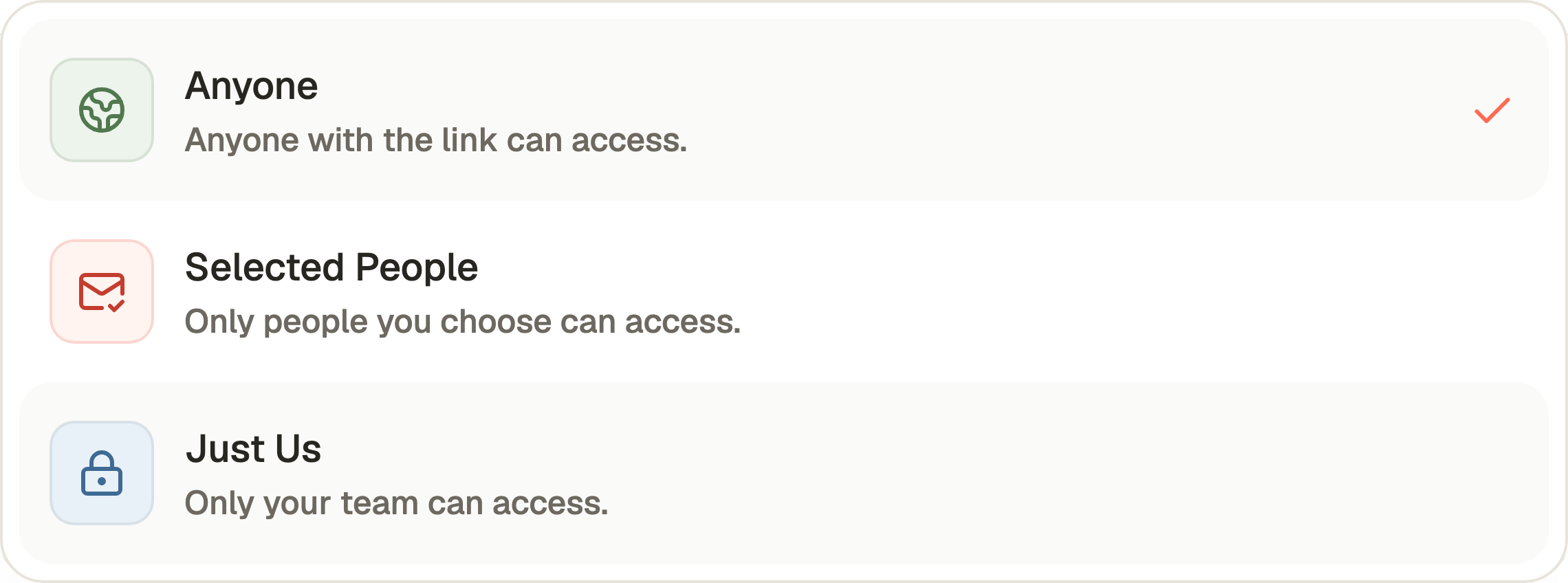
Anyone allows access through the published link, with the normal learner joining requirements. Selected People uses the email addresses or reusable lists you choose. Just Me, called Just Us in a team account, keeps access within the authorised account.
Owners and Creators can change sharing. Viewers can inspect the Sharing overview and copy available saved links but cannot change audiences. Free supports Anyone sharing. Selected People, Just Me or Just Us and reusable list management require an eligible paid plan. Selecting a paid choice on Free explains the requirement and blocks Save or Create until resolved.
Set the default on Space
The space supplies the default audience for courses and flows that inherit it. A resource with its own explicit audience does not follow later changes to that default.
- Open Space in the account navigation.
- Scroll to Sharing and open the This Space sharing control.
- Choose Anyone, Selected People or Just Me / Just Us. For Selected People, add the required addresses or choose a reusable list in the recipient controls.
- Select Save Changes. Saved audience changes affect access immediately. Use View Public Space to check the space link.
Change one course or flow
Open the course or flow editor and select its cog icon, labelled Settings. Course Settings and Flow Settings each contain Sharing.
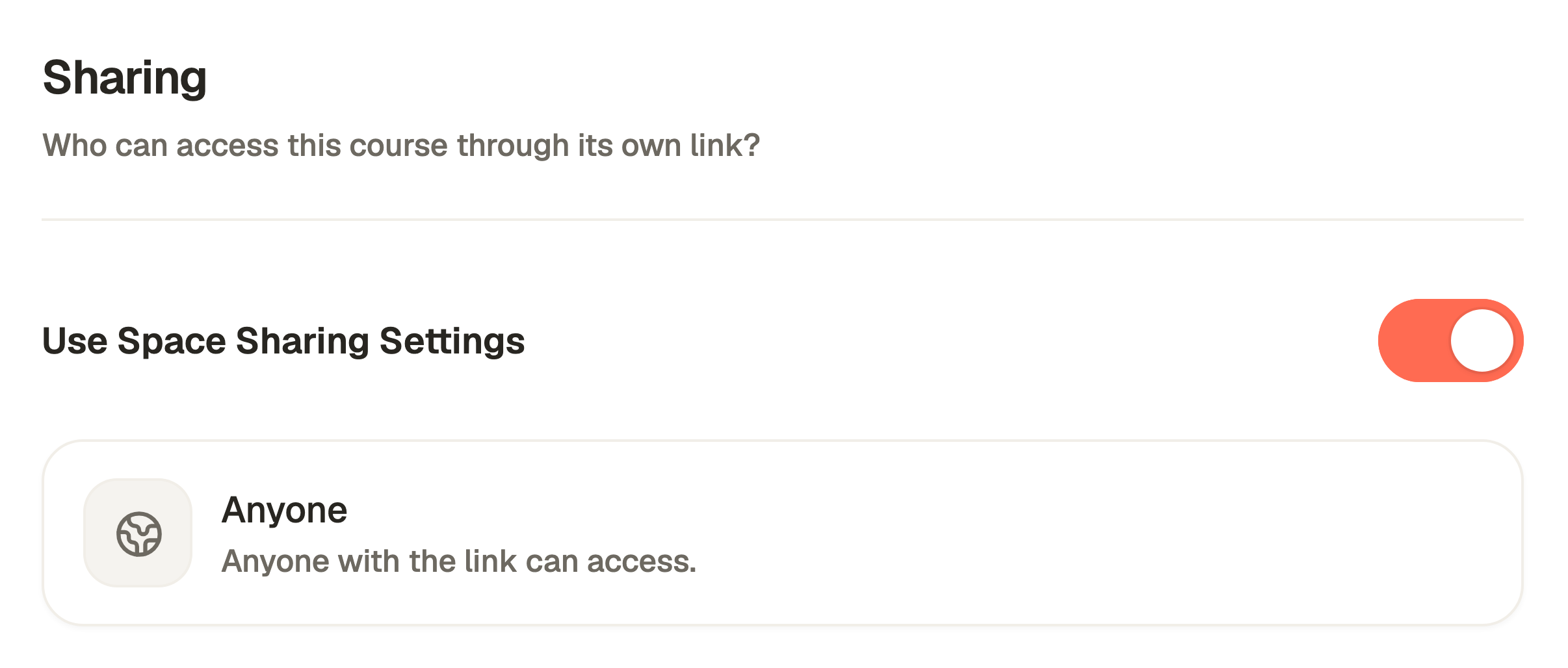
- Find Sharing. Leave Use Space Sharing Settings on to inherit the space default.
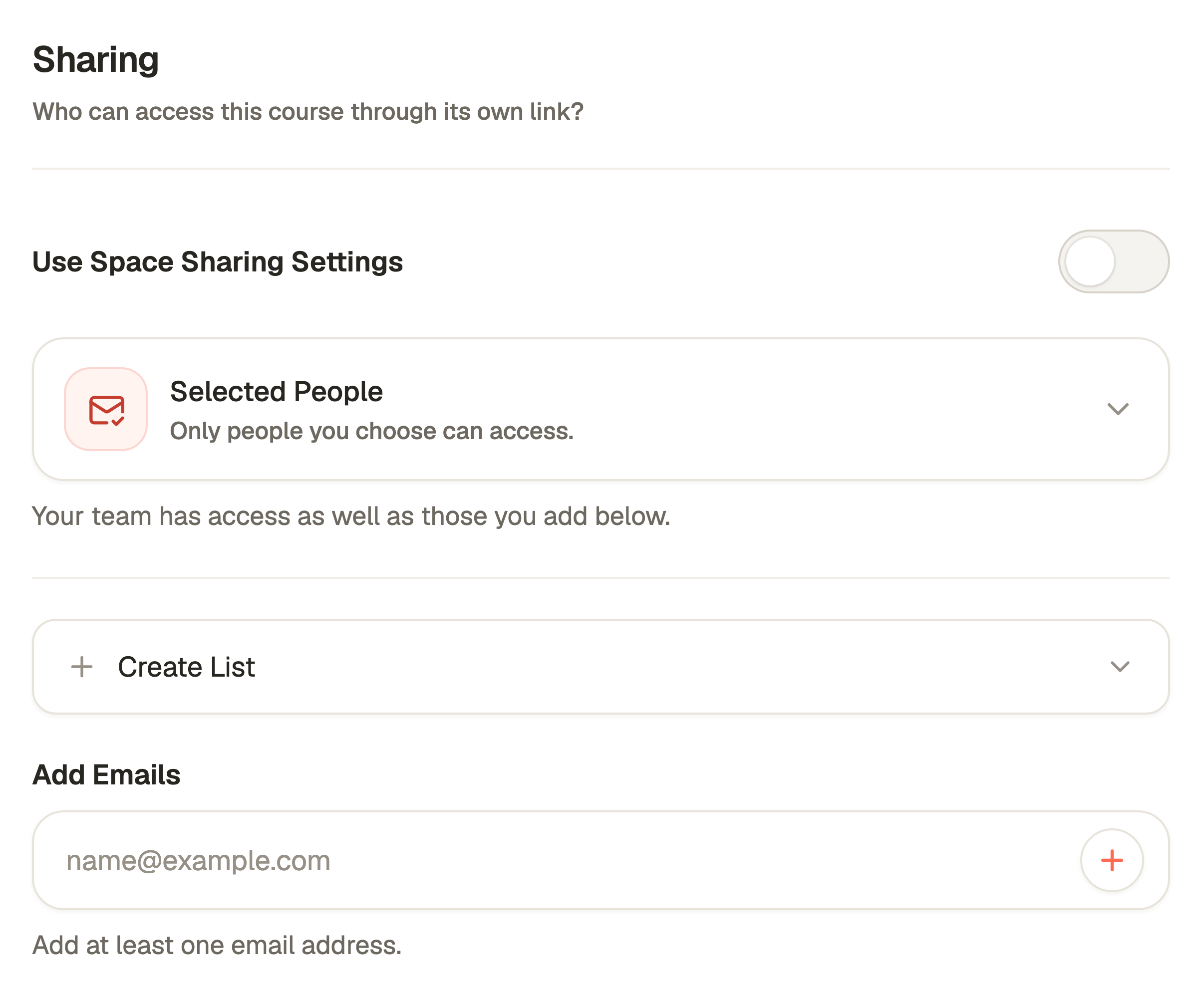
- To set an independent audience, turn Use Space Sharing Settings off and choose the resource’s own audience.
- For Selected People, review the selected lists and use Add Emails for direct recipients. Enter the intended email address, rather than adding someone as a team collaborator just to let them learn.
- Select Save Changes. If sharing details cannot load, use Try Again and resolve the error before saving.
Check whether the link is inside a flow
A flow’s audience controls access to courses entered through that flow. The same course’s standalone link has its own audience. Adding a course to a flow does not copy invitations or replace that standalone choice.
For example, a course can be Just Us on its own while being available in an Anyone flow. Making the standalone link private does not close a permitted flow route. Likewise, a private space can contain a deliberately public flow or course.
A previously private course can show Allow Flow Access in its course sharing settings. Review that confirmation if it should be included in shared flows, then save. This is separate from its standalone audience.
Publish, copy and test the correct link
Saving sharing is not publication. A course must be published. A flow needs a published flow, a course in its published list and that course’s publication. Sequential prerequisites still apply.
After publication, copy the learner link from its success screen or the resource’s saved-link action in Sharing. Copying a link does not change permissions. Test as an ordinary learner, since account preview gives team members additional access.
Help someone who cannot get in
Check the exact link first: standalone course, flow or course inside a flow. Then check publication and that route’s saved audience. For Selected People, confirm that the person is using an included email address and completes the email verification shown.
An invitation or list entry permits access but does not automatically join the person to a course. Removing access retains learning history while blocking later protected access. Contact support if the saved audience and verified learner still disagree.
Questions & answers
- Does making my space private make every course private?
- No. Explicit course and flow audiences remain independent. Review each permitted route, including flows that contain the course.
- Are people in my team required in Selected People too?
- Active Owners, Creators and Viewers already have authorised account preview access. A learner list is for learner permission, not team editing roles.
- Does adding an email send a course invitation or publish a draft?
- A recipient entry defines permission. Do not rely on it as proof of email delivery, course joining or publication. Share the correct published learner link separately.