Understand drafts, previews and publishing
Save changes, preview the draft, publish updates and understand what changes learner access immediately.
On This Page
Know which Save action to use
Course and lesson text saves automatically in the editor. A block has its own action, such as Save Questions or Save Images. Course Settings and Flow Settings use Save Changes. Those actions update the saved draft.
Learners keep seeing the last published version while you edit the draft. For example, removing a cover from the draft removes it from Preview, but learners still see the published cover until you republish.
Preview the version you have saved
Open the course or flow editor and select Preview in the top bar. Pending editor text is saved before navigation. If saving fails, the editor keeps your text and reports the problem. Retry before closing the page.
Account preview shows saved draft content, including draft lessons and blocks. It does not publish or enroll you. A Viewer can preview but cannot edit. Your team can preview drafts that learners cannot open.
An eligible Owner or Creator can also create a temporary course preview link from the course’s action menu using Create Preview Link. This gives access to the draft under that preview link’s expiry and revocation rules. It is not the published learner link or a team invitation.

Publish a course update
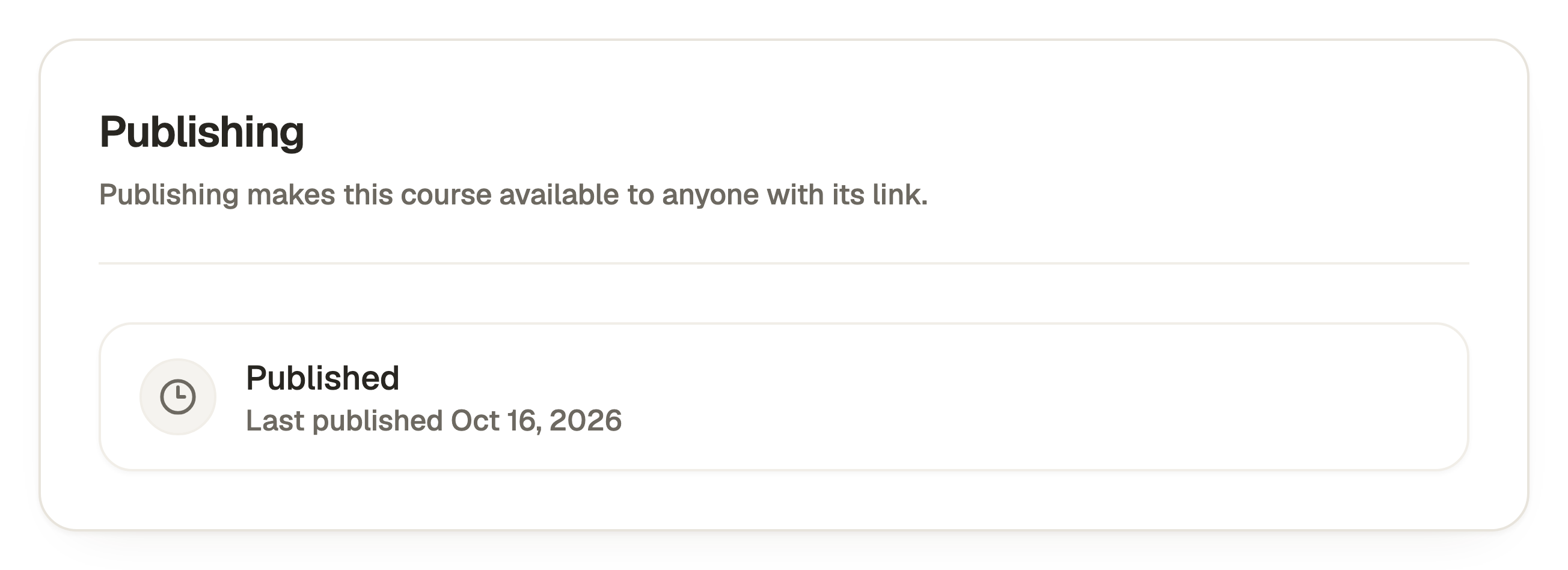
Open the course editor. Its top-bar Publish Course action opens the publishing screen, where you review before confirming.
- Check Publishing and Sharing. If the app cannot load the current details, use Try Again before proceeding.
- Review the course and audience. Finish or cancel any link edit before publishing.
- Select Publish Course for the first publication, or Republish Course for an existing publication, in the bottom action bar.
- Wait for Published successfully. Copy the published link if needed, then select Done.

Publish a flow and its courses deliberately
In the flow editor, select Publish Flow. Review the included course list as well as the flow. Draft courses and courses with unpublished changes are listed for attention.
When shown, Publish Courses Too controls whether those course versions are published with the flow. The bottom action becomes Publish Flow and Courses. Otherwise it reads Publish Flow or Republish Flow. Publishing a reused course updates its published content everywhere it appears.
Publishing a flow releases its details, introduction, cover, order setting and course list. If you reorder courses or change that list, save and republish the flow. Publishing only a course does not publish a changed flow list. If publishing stops with an error, check which courses succeeded before retrying.
Changes that affect access immediately
Saved sharing changes, team-role changes and unpublishing apply immediately. They do not wait for another content publication. Space branding also has no separate Publish action.
To unpublish a course, open Publish Course, find Unpublish and select Unpublish Course, then confirm. Unpublishing retains the content and learning history but makes it unavailable to ordinary learners, including through flows. Unpublishing a flow does not unpublish its courses’ standalone links.
Check the right version when something looks wrong
Use Preview to inspect the saved draft and the published link to inspect the released version. Check the correct course or flow, that the block’s save completed and that the final publication succeeded.
If an old image cannot be deleted from Media, it may still belong to the published version or a retained reference. Publishing the relevant update can release an old published placement, but another saved use still protects the asset.
Questions & answers
- Will a title change break an existing course link?
- Ordinary title edits do not rename an established published link. Link changes use a separate explicit action with a warning because previously shared links may stop working.
- Why can learners still see the old lesson?
- Saving updates the draft. Open Publish Course and use Republish Course to release the saved changes, then check the published learner link.
- Why is publishing unavailable?
- Check your role, plan allowance, the loaded publishing and sharing details, any active link edit and the error shown on screen. Free has a limited public-course allowance and cannot publish flows.