Bring courses together in a flow
Select courses, set their order and audience, then preview and publish the learning path.
On This Page
Before you start
A flow brings existing courses into a larger path. Create the courses in the same account first. A course can be in several flows and keeps one set of authored content and learner progress.
For your first flow, create at least two courses so Create Flow becomes available. Free can keep one draft flow. An account with an existing flow can continue managing its course pool, subject to its current limits.
Owners and Creators can create and edit flows. Publishing flows requires Pro, Team or another eligible plan. Including a draft course does not make that course available to ordinary learners.
Select the courses and arrange the path
Open Flows in account navigation, then Create Flow. The action is at the top right on desktop and in the bottom action area on a phone.
- Under Details, enter Title and Description. Check the proposed link beneath Title.
- Find Your courses. On desktop this is the library on the right. On smaller screens it appears in the form. Use Search by title to find a course.
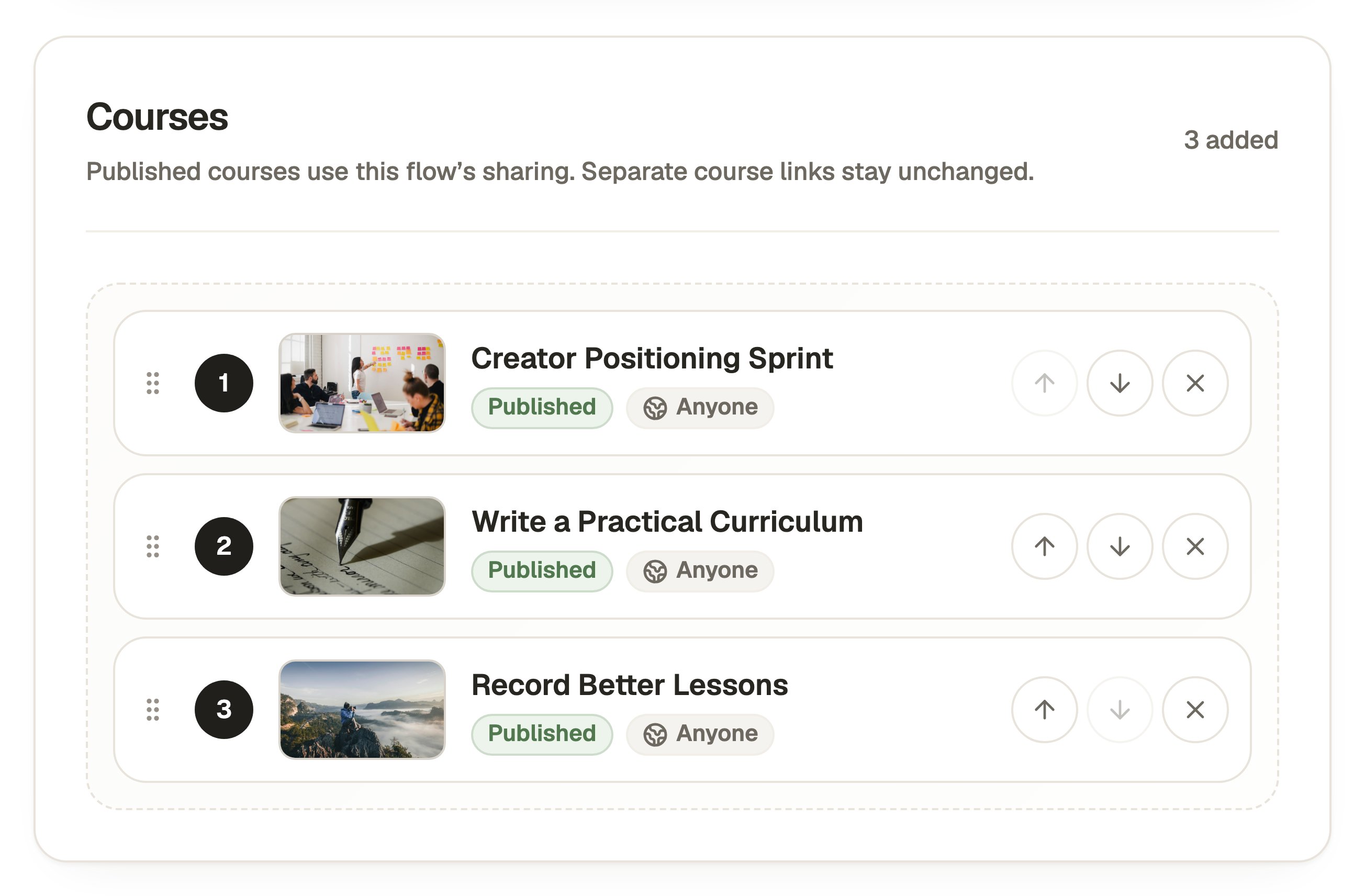
- Use the plus button on a library card to add it to Courses. You can also drag a card into the selected-course area.
- Use the up and down arrows on selected courses to set their order. Remove from flow removes a selection without deleting the course. Keep at least one selected course.
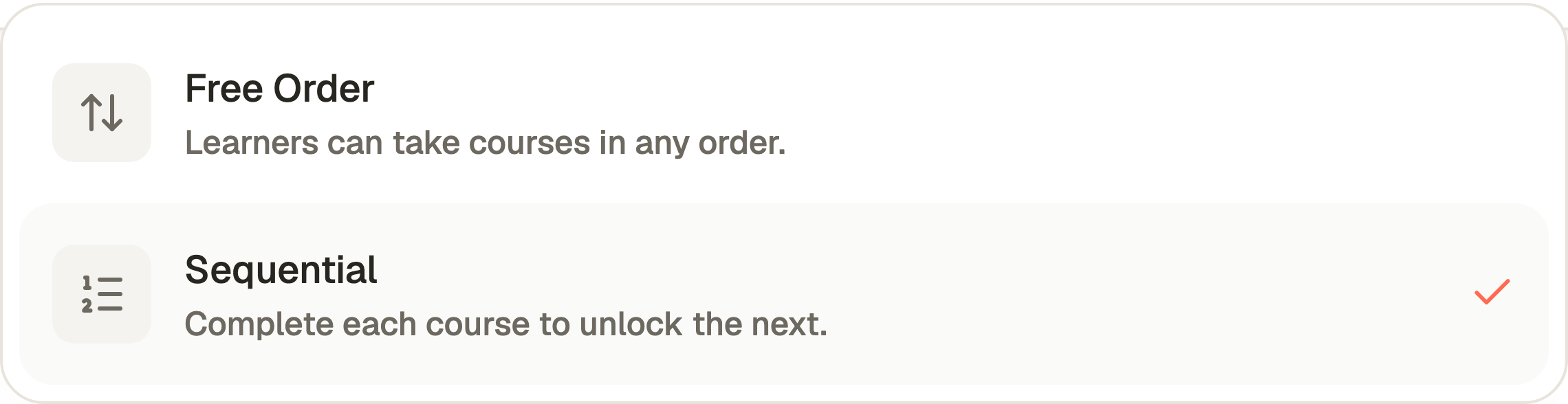
- Under Order, choose Free Order to let learners choose their course order, or Sequential to require earlier courses before later ones.
- Review Sharing, then select Create Flow in the bottom action bar. The saved draft opens in the flow editor.
Edit the introduction or change the course list
Write the flow introduction directly in its editor. Use the top-bar Settings cog to open Flow Settings when you need to change the title, description, selected courses, course order, Order or Sharing. Select Save Changes to apply those settings to the draft.
Use the same up and down controls to reorder the selected list without dragging. The course’s own editor is where you change its lessons. Reusing the course in a flow does not create a separate editable copy.
Review the flow’s audience
Use Space Sharing Settings inherits the space default. Turn it off for the flow’s own Anyone, Selected People or Just Me / Just Us choice. The flow audience controls courses entered through this flow. Their standalone links retain their own audiences.
If a course shows Needs Flow access confirmation or the publishing screen asks you to Review Course Sharing, check the course’s preserved privacy choice. Use Allow Flow Access in its settings only when you intend it to be accessible through shared flows, then save.
Preview and publish the complete path
Saving a changed order or course list does not alter the published path until you republish the flow. Publishing an included course updates that course’s published content wherever it appears.
- Select Preview in the flow editor’s top bar. Use Start Flow to enter the first course preview, then check Back to Flow and the path through the included courses.
- Return to the editor and select Publish Flow. Review the flow’s Sharing and any courses needing publication.
- If shown, review Publish Courses Too. Leaving it on publishes the listed draft or changed courses too, and the final button reads Publish Flow and Courses.
- Select the final Publish Flow, Republish Flow or Publish Flow and Courses action. Wait for Published successfully, copy the flow link and select Done.
Questions & answers
- Why can I not find a course in Your courses?
- Check the active account and the Search by title query. The picker uses courses belonging to that account. A course already selected has a minus control rather than another Add action.
- Why is a course unavailable in the published flow?
- Check that the flow is published, the course is in its published list, the course is published and any Flow access confirmation is resolved. In Sequential, the learner may need to complete earlier courses.
- Will removing a course from a flow delete it?
- No. It removes the association in that flow’s draft. Republish the flow to change the released path. The standalone course and its learning history remain.