Use the media library
Find stored assets, reuse them through editor pickers and understand usage and deletion controls.
On This Page
Browse existing media
Media is the management view for assets already stored in this account. Upload new assets from an editor’s media picker or the relevant block editor. The Media overview is not a separate upload form.
- Select Media in account navigation.
- Use All, Images, Videos, Audio or Files at the top to choose the kind of asset.
- Inspect an item and its usage information. Use Show More below the results to load another page when available.
- Check Storage in the bottom area for the account’s storage usage.

Upload or reuse an asset in an editor
Uploading and attaching are separate actions. A successful upload can remain in the library even if you cancel the block. Editing an existing placement need not upload another copy of the same file.
- Open the course or lesson that needs the asset. Choose its cover control or Add Block and the appropriate media module.
- In the picker, use Library to select an existing item, or the upload control to add a file. Image-capable pickers can also offer Browse Unsplash.
- Wait for upload or video preparation to finish. The picker limits the types and sizes suitable for that placement.
- Confirm the selection, then save the block if it has a separate save action. For example, Save Images and Save Audio apply the selected media to those blocks.
Read usage and Published labels correctly
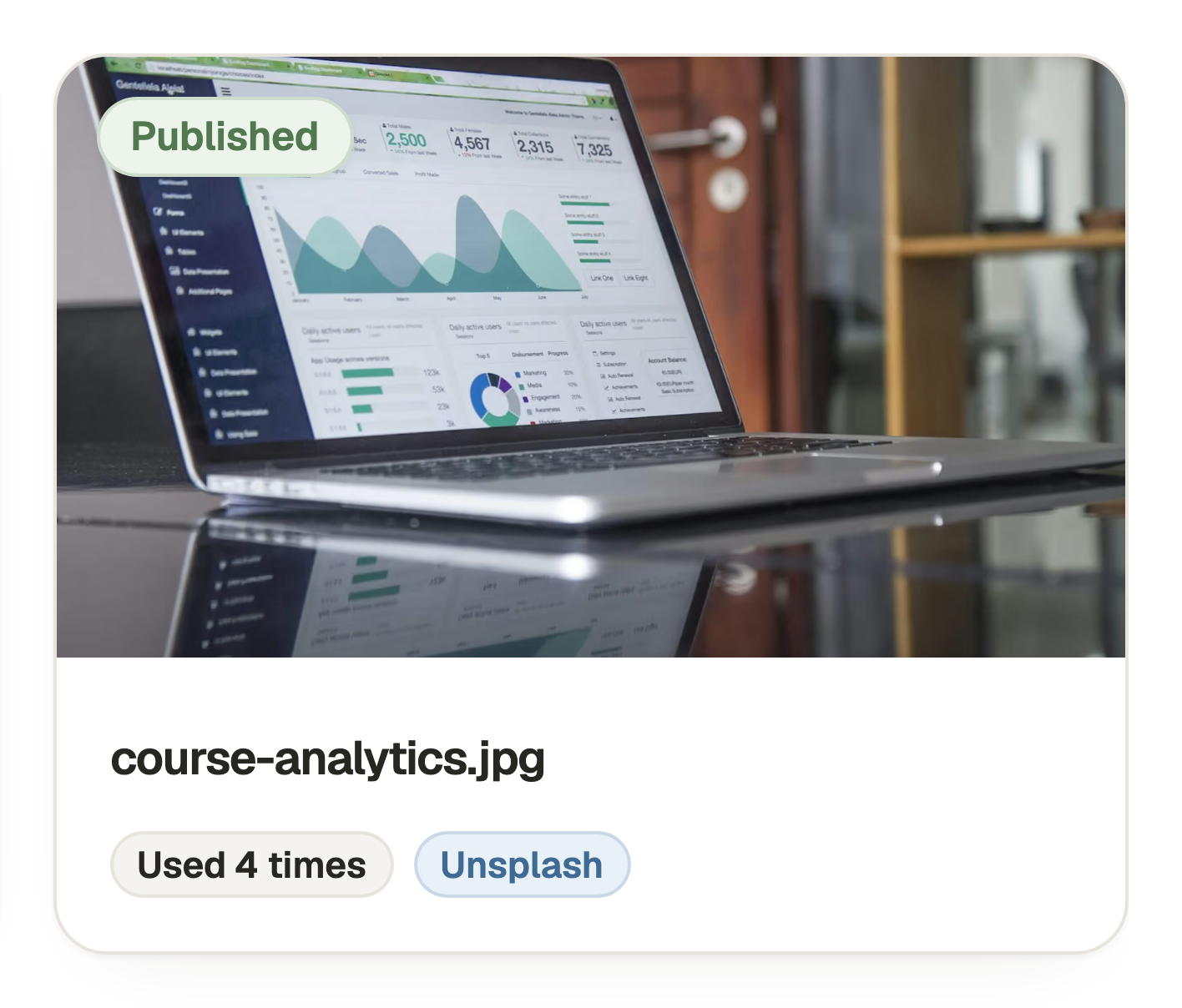
Used N times counts saved placements, rather than unique courses. In Use means a saved reference exists but an exact count is unavailable. Open the usage control to inspect the known locations.
Published means a currently published resource refers to the asset. The asset still follows the sharing settings of the content that uses it.
An item removed from a draft can still belong to the published version. Its usage can explain that it remains published until you republish. You may not be able to jump to that placement in the editor because it has already been removed from the draft.
Delete an unused asset
Viewers can browse, filter and inspect authorised media but do not receive deletion controls. If the usage read failed or is incomplete, the app keeps deletion unavailable.
- Check the asset’s usage. If it is still used, remove or replace the relevant placements in their editors and save those changes.
- If the published version still uses it, republish the relevant content when ready. Also check other courses, flows, branding or retained references.
- Return to Media and review the refreshed usage. Owners and Creators can delete an asset once the app confirms that it is unused.
- Open the item’s action menu, select Delete and review the confirmation before completing deletion. Deleting the library asset is different from removing one placement.
Recover a failed operation
Use the retry action offered beside a failed read or upload. A usage error does not mean an item has zero uses. Preserve the file and retry the read before deciding to remove it.
Removal pending means the file has not finished deleting. Use Retry removal on that item. Contact support with the filename and the operation that failed if recovery does not finish.
Questions & answers
- Why is Delete missing for an image I removed?
- The published version, another saved placement or a retained reference may still use it. Deletion also requires an Owner or Creator role and a successful unused check. Inspect usage before retrying.
- Can I upload directly from the Media overview?
- Use a course or lesson’s media picker or an Audio, Video, Images or Downloads block to upload and place media. The Media page manages stored account assets.
- Does cancelling a block delete its upload?
- No. A completed upload is a separate stored asset. It can remain available in the library even if you cancel the pending placement.