Add images and captions
Choose images from the library or upload them, add captions and check the learner view.
On This Page
Add images to a content area
An Images block can appear in a course introduction, lesson or Complete content. Open the course and choose the relevant area using Lessons in the bottom bar. Owners and Creators can edit.
A block can contain up to 10 selected images. When it is full, remove a selection before choosing another. Wait for an upload or selection to finish before leaving the picker.
- Place the cursor in the content, select Add Block and choose Images.
- In Add Images, use Add Images at the top or Choose Image on an image entry to open the media picker.
- Choose from Library, use Upload Image or Upload Images for your own file, or select Browse Unsplash when offered. The image upload control shows a 5MB maximum.
- Select the images you need and confirm with the picker’s bottom action. For several images this includes the count, such as Add 2 Images. A single-image replacement uses Choose Image.
Add captions and review each entry
Prepare the source image so the important detail is visible. For a product screenshot, remove private details before upload and keep button labels legible. The caption should explain the image’s job in the lesson.
The editor lists the images included in the block. Do not rely on an image being readable simply because it looks sharp on a large desktop screen.
- Back in Add Images, review Image 1, Image 2 and the other selected entries.
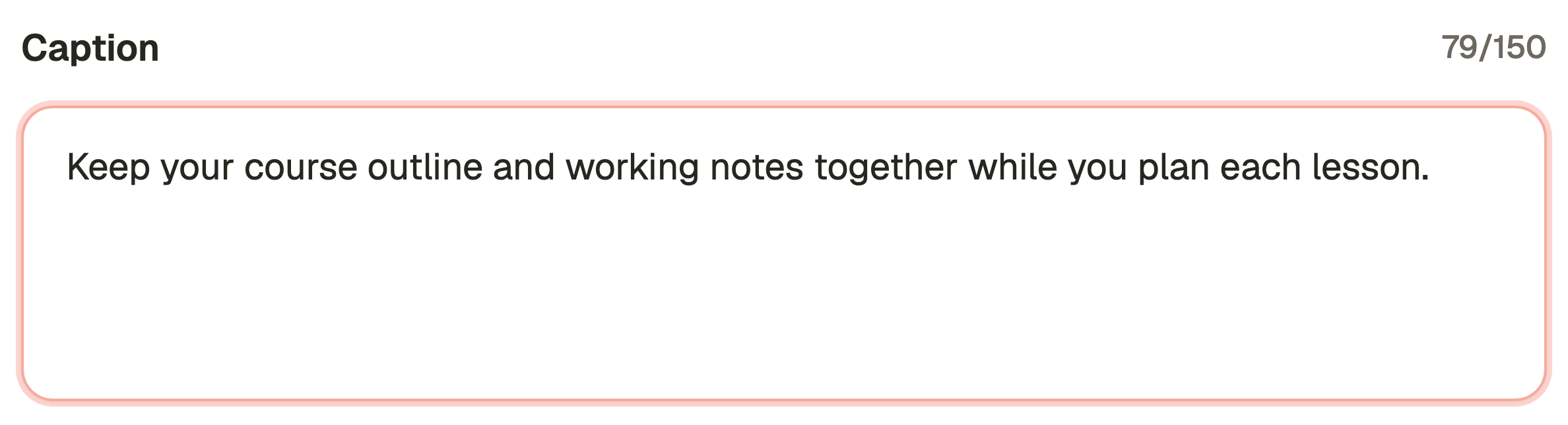
- Use Caption beneath an image to explain what the learner should notice. Captions are optional and allow up to 150 characters.
- Use an entry’s image control to replace its image. Use Remove image for an entry you no longer need, or Remove on its image placement to clear the selected image.
- Use Title in Toolbar for an optional block title. On a narrow screen, use Open toolbar to reach those settings.
Save and check the images on a phone
- Select Save Images at the bottom. At least one image must be selected. Cancel leaves without applying pending block changes.
- Select Preview in the course editor and find the block. Use its previous and next image controls when more than one image is included.
- Check captions and screenshot text at a phone width. If necessary, prepare a closer image of the relevant detail and replace the source.
- Save the revised block and republish the course to release the changes to learners.
Questions & answers
- Why is Add Images unavailable?
- The block may already have its 10 selected images, or a selection may still be processing. Remove an image if the block is full and complete the current operation before adding another.
- Why is Save Images disabled?
- Select at least one image and check the caption limits. Uploading a file alone is not the same as confirming it into the block.
- Can I reuse an existing screenshot?
- Yes. Choose it from Library instead of uploading another copy. Removing a block placement does not delete the original asset, and other saved or published uses still protect it.