Build lessons with text, media and activities
Use Add Block, choose the right module and test the saved lesson before publishing.
On This Page
Open the lesson you want to build
Open Courses, select your course, then select Lessons in the editor’s bottom bar and choose a lesson. You need an Owner or Creator role to edit. Each lesson has a title, an optional cover and an editable content area.
Give the lesson one job. A useful pattern is a short explanation, a concrete example and something to try. You can use text alone when that explains the idea clearly.
Write and format the explanation
Click or tap in the lesson content and type. Select some text to show the floating formatting toolbar. Its controls include Normal, Heading, Subheading, Bullet List, Numbered List, Bold, Italic and Strikethrough. Text saves automatically.
- Write a short explanation of the idea or task.
- Select the text you want to change and choose a formatting control. Use headings to separate meaningful sections.
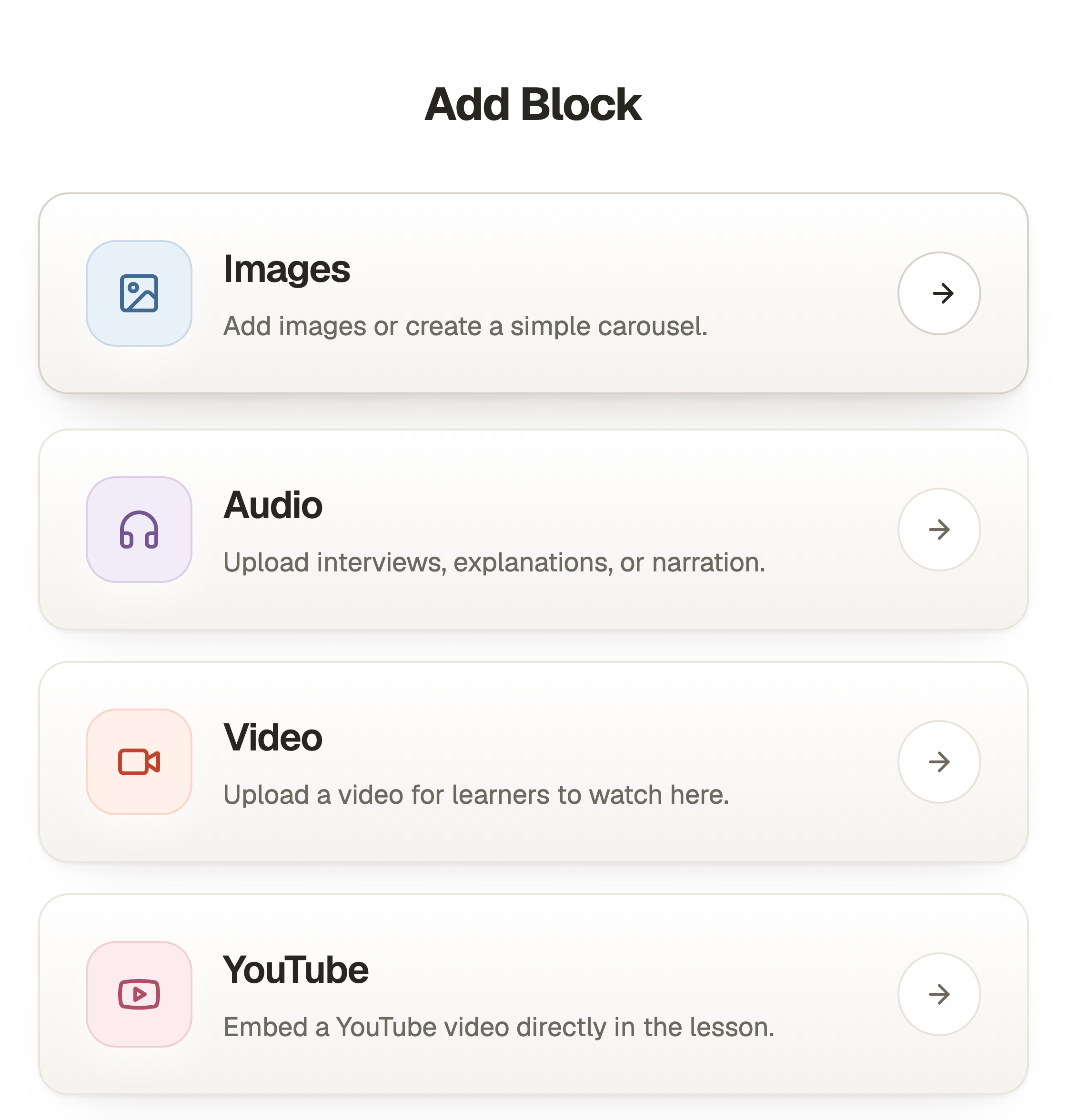
- Place the cursor where you want another kind of content, then use the plus control labelled Add Block. Depending on screen width, it shows Add Block, Add or just the plus icon.

Choose and save a block
The Add Block chooser lists Images, Audio, Video, YouTube, Downloads, Tables, Scenarios, Questions and Actions for lessons. Course introductions and Complete content offer Images, Audio, Video, Downloads and Actions. Open a lesson if you need a lesson-only module.
Questions collect choices or written responses. Scenarios explain a situation section by section. Tables compare information. Images, audio and video demonstrate a detail. Downloads provide supporting files, and Actions provide a labelled next destination.
- Select the block type in Add Block.
- Complete the fields in its editor. The Toolbar on the right contains optional titles and module settings. On a narrow screen, open it with the Open toolbar control.
- Use the bottom action, such as Save Images, Save Questions or Save Table. Cancel leaves without applying the changes in that block editor.
- To change an existing block, use its Edit control in the lesson. Its bin control removes the block from the draft, rather than deleting the original library files.
Try the lesson before releasing it
Select Preview in the course editor’s top bar. Read the saved draft as a learner would. For questions, submit answers and read the outcomes. For media, test playback. For downloads and actions, test the destination.
Check on a phone, especially text inside screenshots and wide tables. Return to editing if anything needs changing. Saving a block updates the draft. Use Publish Course, then Publish Course or Republish Course on the publishing screen, to release it.
Questions & answers
- Why is Questions or Tables missing from Add Block?
- These are lesson modules. They are not offered on the course introduction or Complete content. Use Lessons in the bottom bar to open a lesson first.
- Can I leave a block without saving it?
- Yes. Cancel closes its editor without applying its pending block changes. Uploading a file is separate, so an uploaded asset may remain in the library even if you cancel the block.
- Do I need a question in every lesson?
- No. Use one where a decision, practice or reflection helps. Avoid adding an activity solely to fill the page.