Give learners a useful next action
Add a Space, Website, Email or Phone action with the prompt and button label learners should see.
On This Page
Add and configure an action
Actions can be used in a course introduction, lesson or Complete content. Open the relevant area through Lessons in the course editor. Owners and Creators can edit.
- Place the cursor in the content, select Add Block and choose Actions.
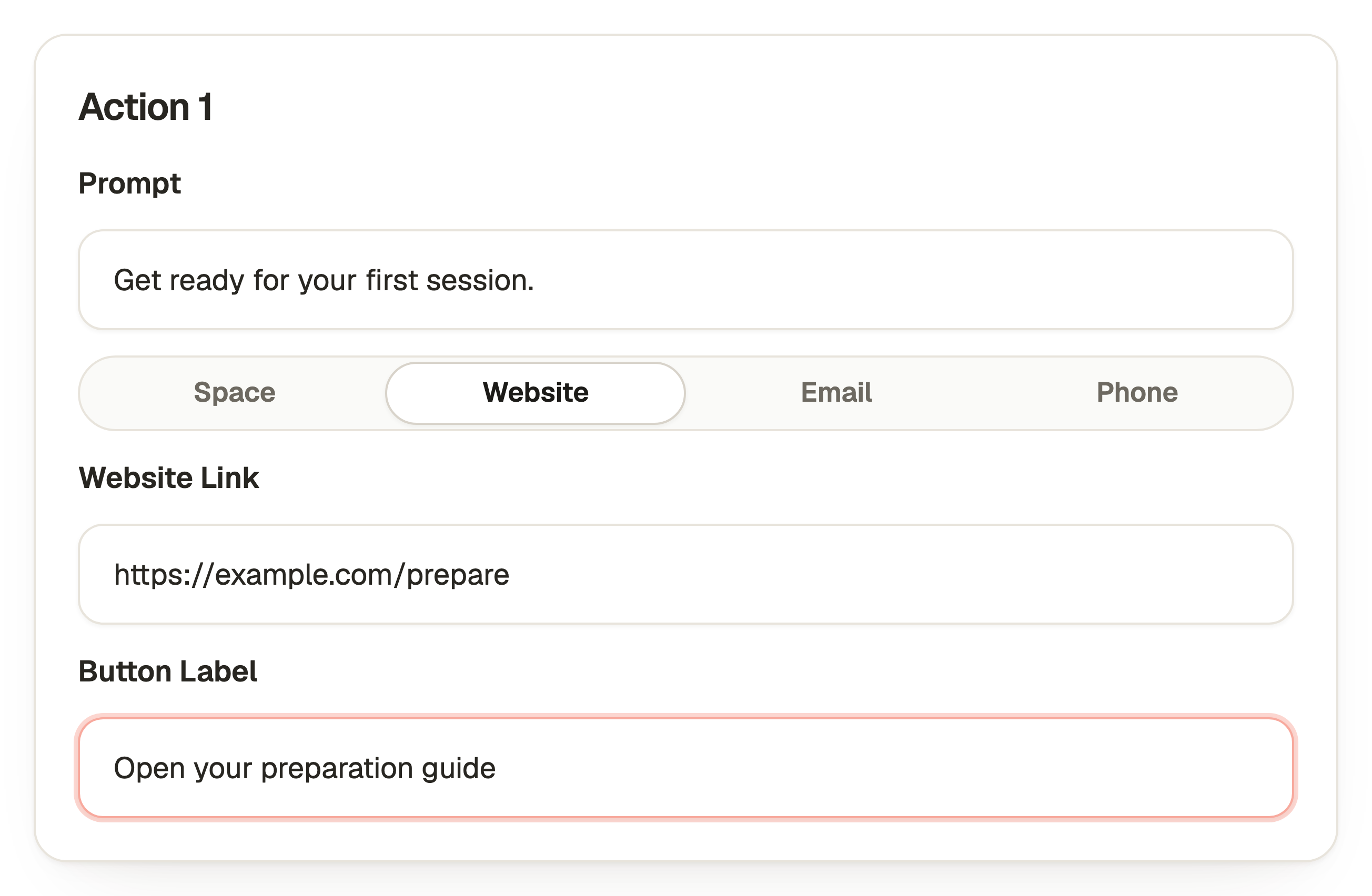
- In Add Actions, enter Prompt. This is the explanation shown with the action.
- Choose Space, Website, Email or Phone.
- For Website, enter Website Link. For Email, enter Email Address. For Phone, enter Phone Number. Space uses the creator space destination and does not need a separate destination field.
- Enter Button Label. This is the text on the learner’s button, rather than the longer prompt.
- Use Add Action at the top if the block needs another action. Use Remove action on an extra entry to remove it.
Make the destination clear
A prompt such as “Use the checklist to prepare for your session” explains the reason. A button label such as “Open the checklist” explains what the action does. Avoid a generic “Click here”.
Use Title in Toolbar for an optional heading above the block. On a narrow screen, open Toolbar using Open toolbar.
A link does not publish content or grant access at the destination. If you point at a private course, document or external website, that destination still applies its own permissions.
Save and test each destination
Cancel leaves without applying pending block edits. Keep the next action relevant to the lesson or completion rather than adding several competing destinations.
- Select Save Actions in the bottom bar. Every action needs Prompt and Button Label. Website, Email and Phone also need their destination field.
- Select Preview in the course editor and test each saved action.
- Check the destination as the intended learner. Email and Phone use the apps configured on the device, so check the address or number as well as whether an app opens.
- Use Edit on the block to correct a destination, then Save Actions. Republish the course to release the update.
Questions & answers
- Why is Save Actions disabled?
- Check every action in the block. Each needs Prompt and Button Label, and every Website, Email or Phone action needs its destination. An extra incomplete action can prevent the whole block from saving.
- What does Space link to?
- Space uses the creator’s space destination. Choose Website if you need to enter a different link yourself.
- Why does Email or Phone open another app?
- Those actions use the device’s configured mail or calling application. The learner may need to copy the address or number if no suitable application is configured.
- Does linking to a private course give access?
- No. The destination still requires its current publication, audience and joining conditions. Choose the correct permitted learner link separately.