How to use the course editor
Find the introduction, Lessons menu and Complete content, format text and save blocks correctly.
On This Page
Find your way around a course
Open Courses in account navigation and select a course card. Owners and Creators open the editor. A Viewer opens an authorised read-only preview instead.
The top bar contains Exit Editing, the Settings cog, the help icon, Preview and Publish Course. The bottom bar contains Lessons, your current course position, Add Lesson and the previous or next navigation controls. On narrow screens some controls use icons with the same accessible names.
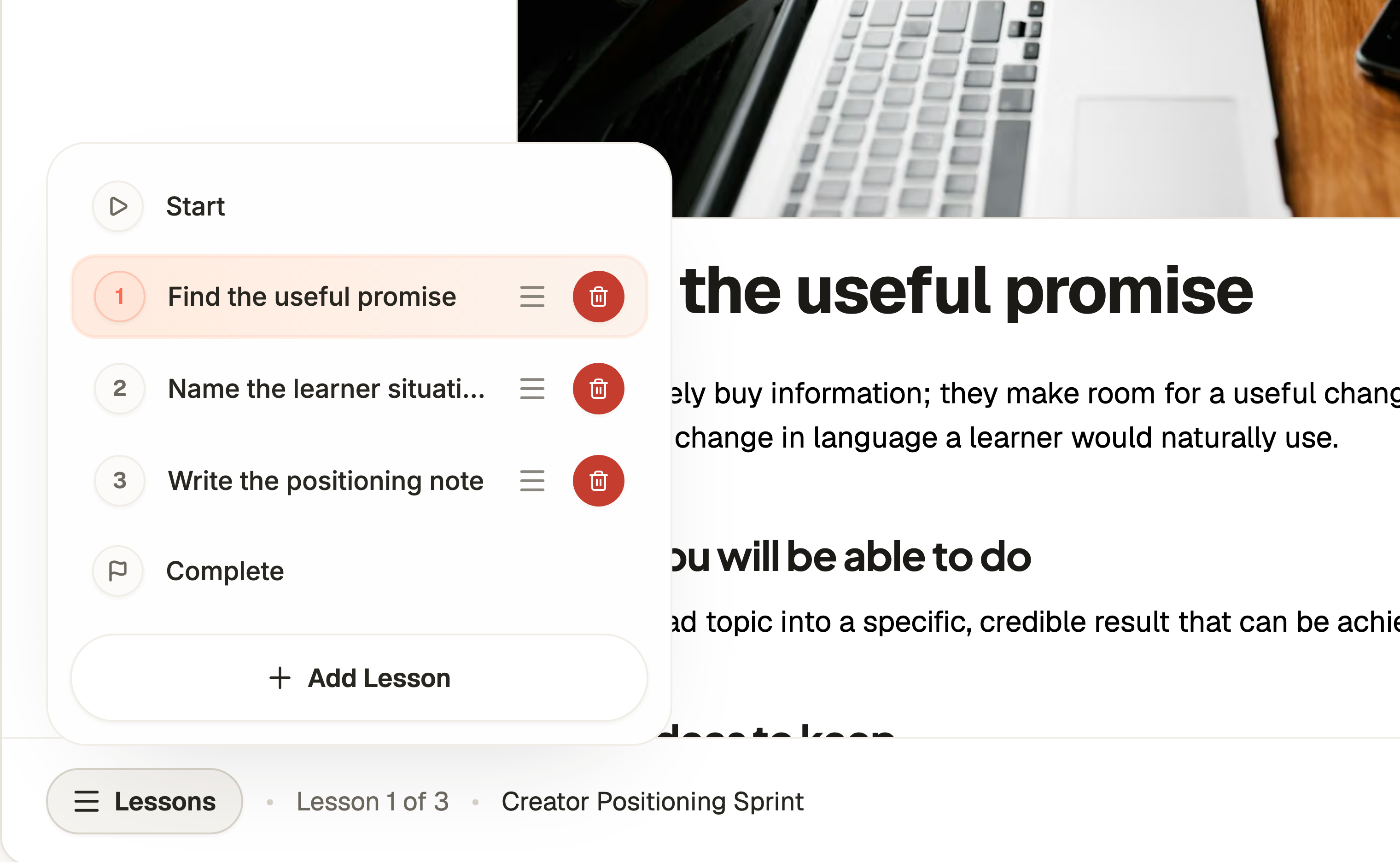
- Select Lessons in the bottom bar to open the course menu.
- Choose Start for the introduction, a lesson title for that lesson, or Complete for the closing content.
- Use Add Lesson to create another lesson, then edit its title and content. You can also use First Lesson or Next lesson to move through the editor.
Edit text and formatting
Click or tap the course or lesson title to edit it. Click in the body to write. The introduction explains the course, lessons contain the teaching content, and Complete gives the final message or next action.
Select text to open the floating formatting toolbar. Choose Normal, Heading or Subheading for structure, Bullet List or Numbered List for lists, and Bold, Italic or Strikethrough for emphasis. The toolbar appears for a text selection, not simply because the page is open.
Ordinary editor text saves automatically. Settings and block editors have separate confirmation actions. Do not close the tab while a save error is unresolved.
Insert, edit or remove a block
Cancel exits a block editor without applying its pending block edits. Uploaded files are separate library assets and can remain after cancelling.
- Put the cursor where the new content belongs and select the plus control labelled Add Block. Its visible label can shorten to Add or a plus icon.
- Choose the module. Lessons offer all nine types. Introductions and Complete content offer Images, Audio, Video, Downloads and Actions.
- Complete the fields. Use Toolbar on the right for optional title and settings, or Open toolbar on a narrow screen.
- Select the module’s confirmation action, such as Save Questions or Add Video. The saved block appears in the draft.
- Use Edit on an existing block to change it. Use its bin control to remove it from the draft. This does not delete referenced library files or immediately replace the published version.

Manage the lesson list
Open Lessons in the bottom bar to see the ordered lesson list. Drag a lesson by its drag handle to reorder it. The bin button beside a lesson opens Delete lesson?, where you can cancel or confirm.
Deleting a lesson removes it from the saved draft. If it is part of a published course, the released version stays unchanged until republishing. Deletion is different from navigating to another lesson.
Preview, publish or leave the editor
Select Preview to check the saved draft. The editor attempts to save pending text before switching lessons, opening settings or previewing. If it reports Could not save your changes or Still saving this lesson, stay on the screen and retry.
The Settings cog opens Course Settings. Use Save Changes there. Publish Course opens the publication review screen, where Publish Course or Republish Course releases the saved version. Exit Editing returns to the account dashboard.
The help icon opens a short explanation with Learn More. In the app, Learn More opens the article inside the current container. Use Back To App to return to the editor with your work still in place.

Questions & answers
- Why do I see Preview instead of editing controls?
- Check your role and active account. Viewers can read and preview account content but cannot edit it. An Owner or Creator can manage content.
- Why can I not find a text Save button?
- Course and lesson text saves automatically. Blocks use their named save action, and Course Settings uses Save Changes. Preview and publication wait for pending editor text to save.
- Why is a module missing from Add Block?
- Questions, Scenarios, Tables and YouTube are lesson-only modules. Open a lesson through Lessons rather than Start or Complete.