Add questions and useful feedback
Choose a question type, mark correct answers, add outcomes and set the rule for continuing.
On This Page
Add a Questions block to a lesson
Questions is a lesson module. Open Courses, select your course, open Lessons in the bottom bar and choose a lesson. You need an Owner or Creator role to edit.
- Place the cursor in the lesson content, select Add Block and choose Questions.
- In Add Questions, enter the prompt in Question.
- Under Answers, select Single Choice, Multiple Choice, True/False or Free Form.
- Use Add Question at the top to include another question in the same block. The bin control on an additional question removes it from the pending block.
Set the correct answers for the chosen type
Single Choice needs at least two options and exactly one correct answer. Edit each option’s text and select its correct-answer control to mark the right one. Use Add Option for another choice, or the bin beside an option to remove it when the minimum is still satisfied.
Multiple Choice needs at least three options and at least two correct answers. Mark every intended correct option. True/False uses its two choices and needs exactly one correct answer.
Free Form asks for a written response and has no correct-option selection. Use it for reflection or an answer in the learner’s own words. The app does not mark the written answer.
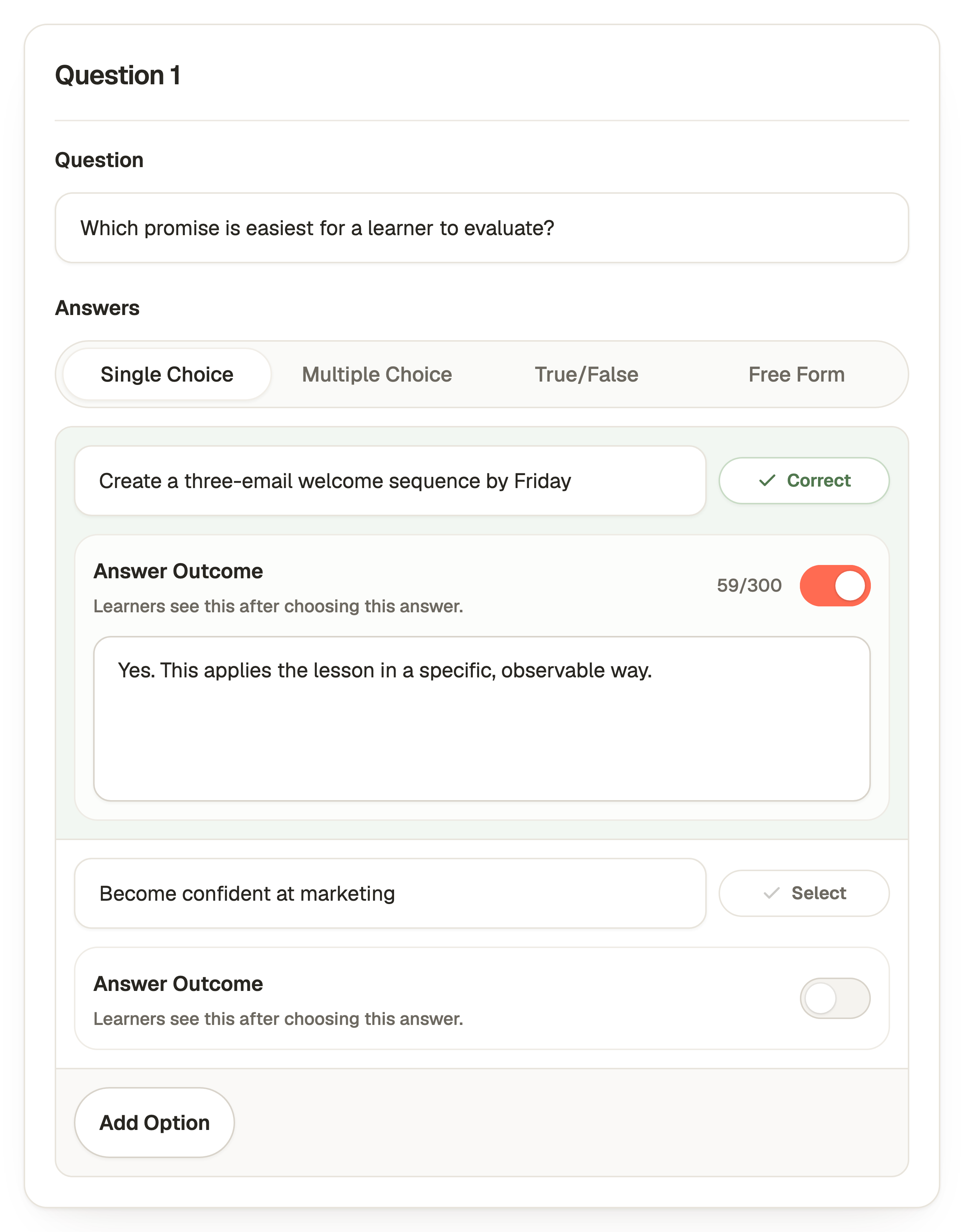
Explain the answer outcomes
For Single Choice and True/False, use the Answer Outcome switch beneath each option to add feedback for that choice. The text explains why it is useful or what to reconsider.
For Multiple Choice, use Correct Answers Outcome and Incorrect Answers Outcome. These explain the result of the combined selection. For Free Form, Response Outcome shows a follow-up message after the learner submits their response.
Outcome fields are optional and allow up to 300 characters. Turning an outcome off removes its pending message. Write feedback that helps the learner decide what to do next, rather than only saying “wrong”.
Set the title and continuation rule
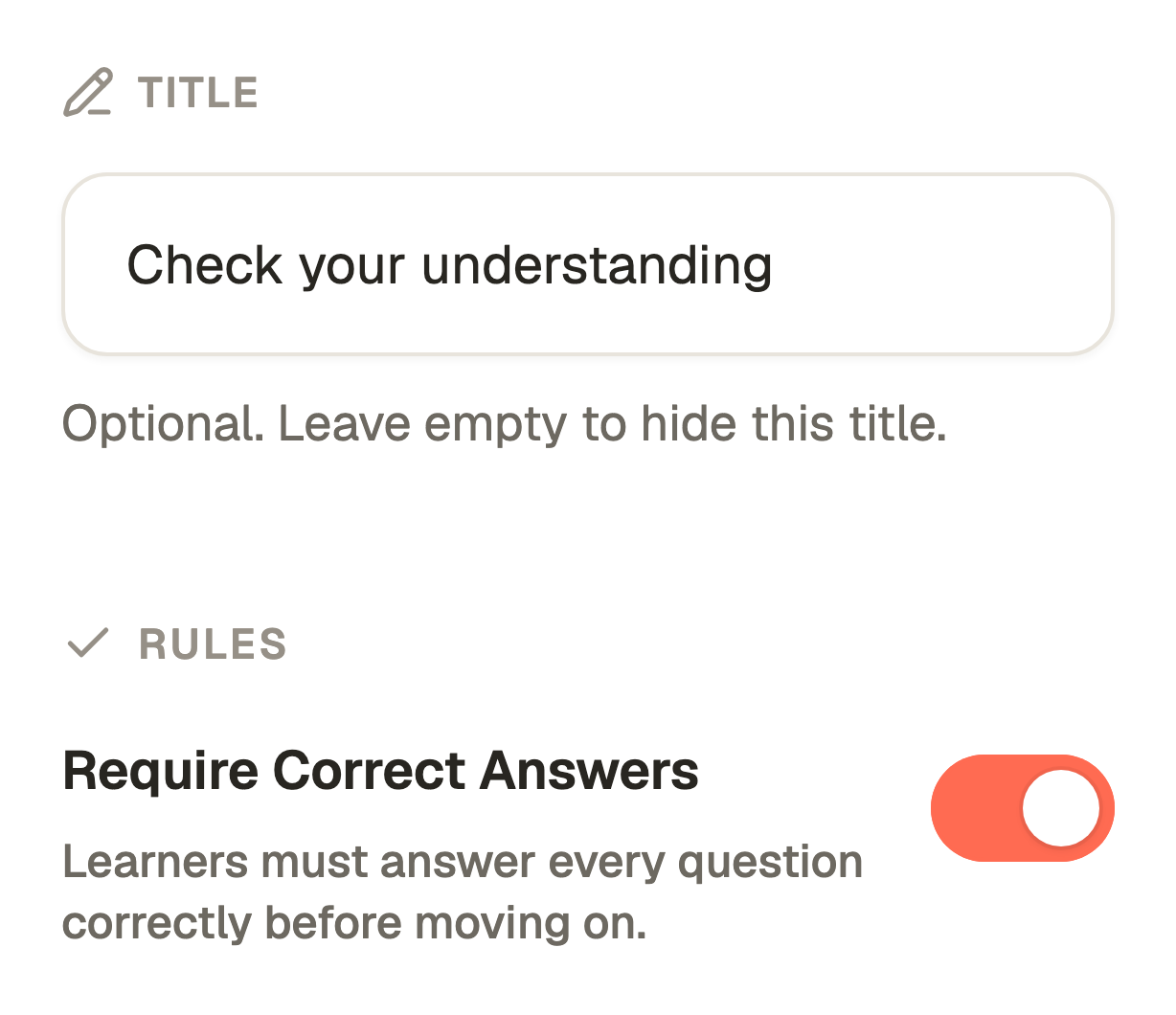
Open Toolbar on the right, or the Open toolbar control on a narrow screen. Title is optional. Leave it empty to hide the custom title.
Under Rules, Require Correct Answers makes learners answer graded questions correctly before moving on. Free Form still needs a submitted response rather than a correct-choice mark. Check the rule against the kind of activity you intend.
Save and test both kinds of answer
- Select Save Questions in the bottom bar. The saved block returns to the lesson. Cancel leaves without applying its pending edits.
- Select Preview in the course editor. Choose an answer and select Answer to submit it. Read the outcome and follow the next action shown.
- Try an incorrect selection as well as a correct one, and check whether the continuation rule behaves as intended.
- Return to editing to fix the prompt or outcomes. Save Questions again, then republish the course when you want learners to receive the update.
Questions & answers
- Why is Save Questions disabled?
- Every question needs a prompt. Single Choice and True/False need exactly one correct answer and at least two options. Multiple Choice needs at least three options and at least two correct answers. Check each question in the block, not only the one currently visible.
- Why can I not remove an option?
- The editor preserves the minimum options and correct-answer requirements for that question type. Change the type or adjust the other choices rather than leaving an invalid question.
- Where can I read submitted answers?
- Open Analytics, select Courses and choose the course for question reporting. Select Learners and a person for their Question Answers. Available reporting and retained history depend on the account’s plan.
- Does saving feedback change the live course immediately?
- No. Save Questions updates the draft. Test Preview, then use Republish Course to release the new question version.