Explain a real-world scenario
Create a section-by-section walkthrough with titles, descriptions and optional images.
On This Page
Open the scenario editor
You need an Owner or Creator role to edit. Use a fictional or appropriately anonymised situation if a real client example contains private information. Scenarios is offered in lessons, rather than the course introduction or Complete content.
- Open your course and use Lessons in the bottom bar to choose a lesson.
- Place the cursor in the lesson, select Add Block and choose Scenarios.
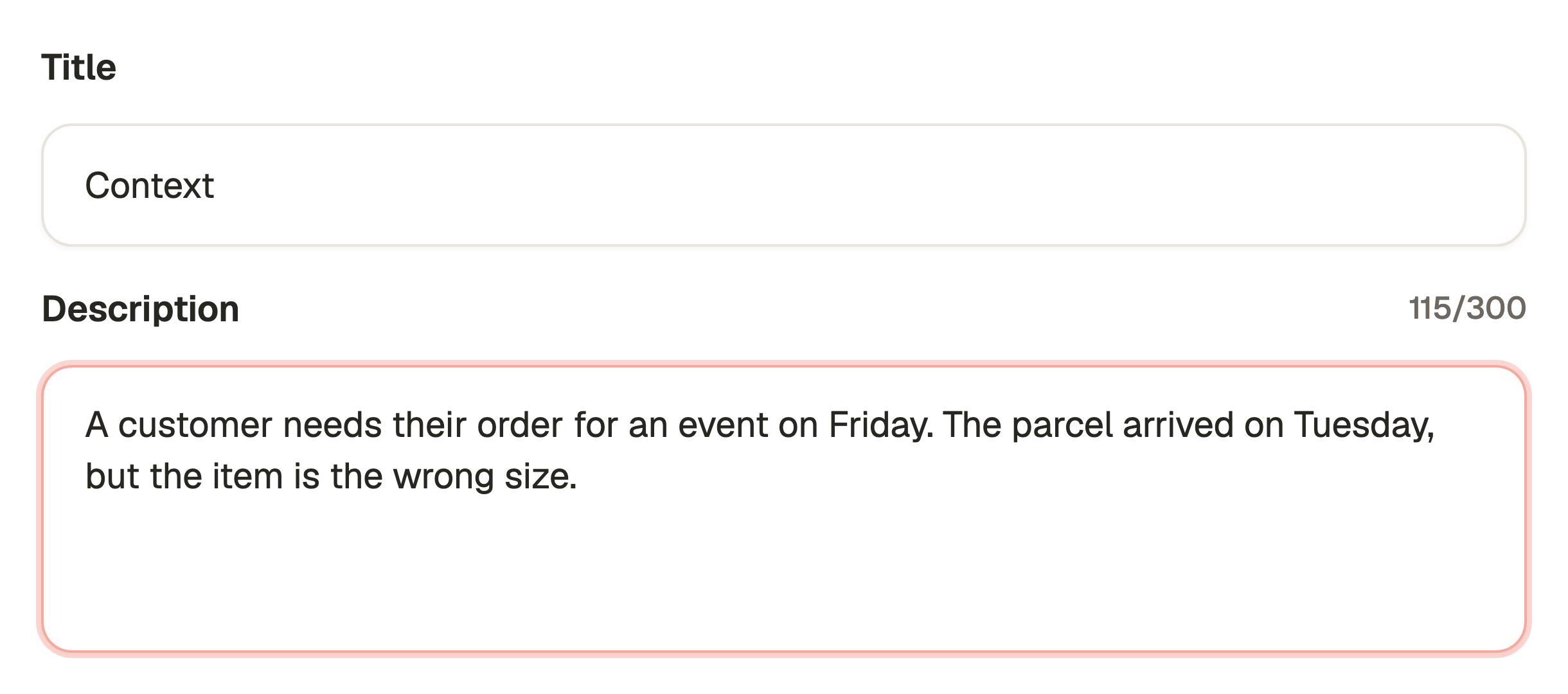
- The Add Scenario editor opens with sections based on Context, Problem, Solution and Takeaway.
Write the walkthrough
You can replace the starting section titles. Make the sequence understandable: what happened, what failed, what changed and what the learner can use next time.
Each section must have a non-empty title and description before it can be saved. An image is optional and does not replace the explanation.
- For each Section, edit Title and Description. Use Title for that part of the story and Description for what happens.
- If an image helps explain a section, use Add Image beneath its Description and choose it from the media picker.
- Select Add Section at the top to extend the walkthrough. Use Remove section on a section you do not need. The editor keeps at least one section.
- Use Title in Toolbar for an optional title above the whole block. On a narrow screen, open Toolbar using Open toolbar.
Save and read the learner walkthrough
- Select Save Scenarios at the bottom. The block is saved into the lesson draft. Cancel leaves without applying pending scenario edits.
- Select Preview in the course editor.
- Move through the scenario with its previous and next section controls. Check that each section follows naturally and any image is readable.
- If the learner should practise making a decision, add a separate Questions block after the explanation. Republish the course when the saved changes are ready.
Questions & answers
- Why is Save Scenarios disabled?
- Check every section for a title and description. Removing all the writing from one section leaves the scenario incomplete. Complete it or remove that section while retaining at least one.
- Is the scenario a marked quiz?
- No. It presents a walkthrough. Use a Questions block when you need a choice, graded answer or written response.
- Will removing a section image delete the library file?
- No. Removing a placement is separate from deleting the stored asset. Saved and published references continue to protect that file.