Offer downloadable files
Select library files or upload supporting material, save the Downloads block and test the learner download.
On This Page
Choose the files learners should receive
Downloads can be added to a course introduction, lesson or Complete content. Open the course and choose the relevant area from Lessons. Owners and Creators can edit.
The filenames are what help learners recognise the download. Give the original files sensible names, and check their contents before uploading. At least one selected file is required.
- Place the cursor in the content, select Add Block and choose Downloads.
- In Add Downloads, select the required files in the library canvas. Multiple files can be selected for the same block.
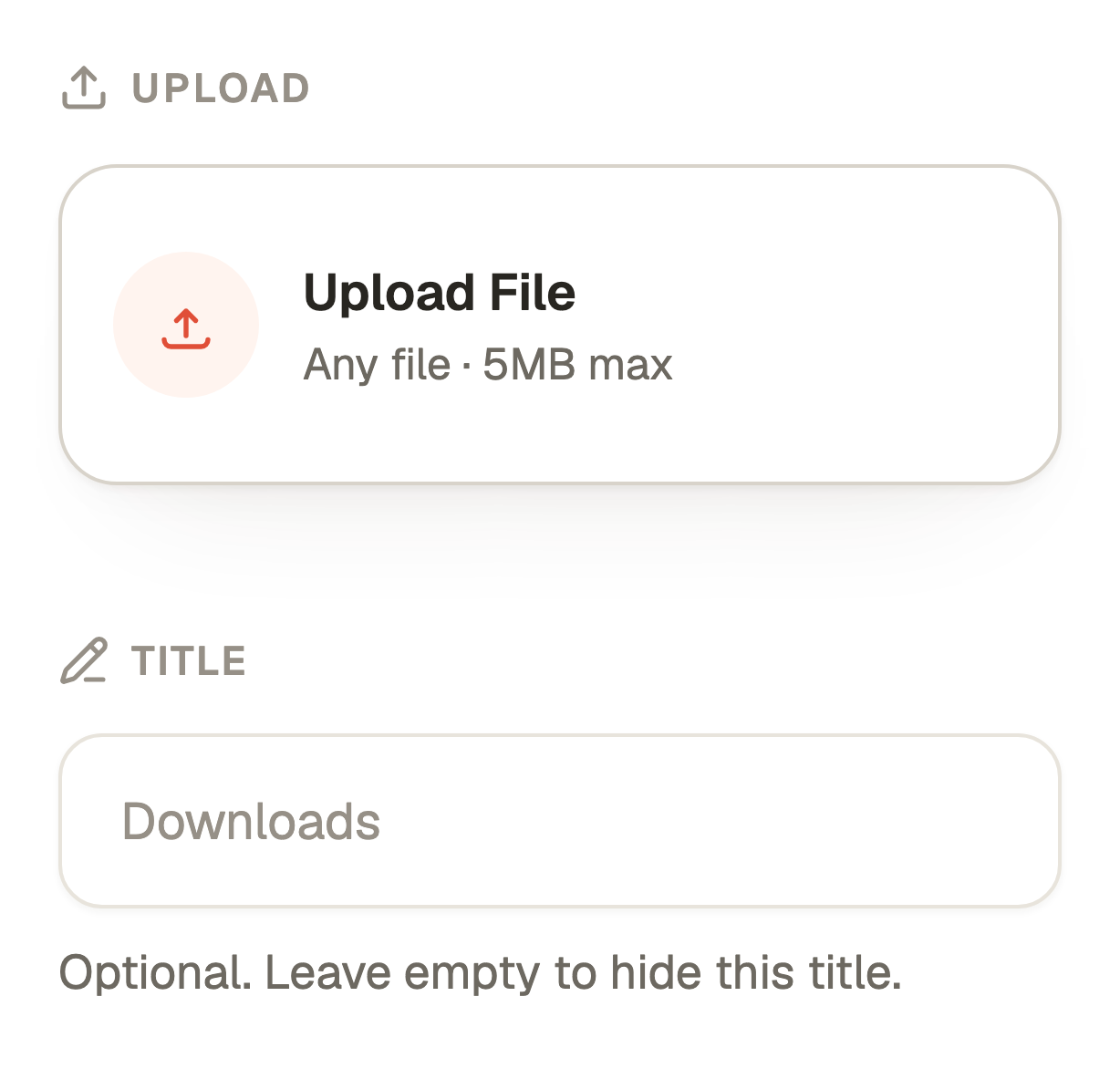
- For a new file, open Upload in Toolbar and select Upload File. On a narrow screen, use Open toolbar to reach it. The file uploader shows a 5MB maximum per file.
- Wait for uploads to finish. Check the filenames listed under Selected in Toolbar. Deselect a file in the library canvas if it should not be included.
- Use the optional Title field for a heading, then select Save Downloads in the bottom bar.
Explain when and how to use the file
Write the instruction beside the block. For example, tell learners to fill in a worksheet before the next lesson or keep a checklist for later. A download without context can be easy to miss.
Check the actual file for private information and readability. If people need a particular application to open it, say so in the lesson and provide a suitable alternative where possible.
Test the download and publish
Cancel exits the block editor without applying pending selections. Completed uploads can still remain in the library. Removing a file from this block does not delete the library asset, and a file someone has already downloaded cannot be recalled from their device.
- Select Preview in the course editor and open a file from the saved Downloads block.
- Check that the intended file opens or downloads and contains the current version. Test every included file.
- To replace the set later, use Edit on the block, update the selections and select Save Downloads.
- Republish the course to release the updated files. Check ordinary learner access separately from account Preview.
Questions & answers
- Why is Save Downloads disabled?
- Select at least one file and wait for its upload to complete. The Selected list in Toolbar shows what will be included, rather than every file visible in the library canvas.
- Can I replace a worksheet after publication?
- Yes. Edit the block’s selection, save and republish the course. Someone who previously downloaded the older file may still have that local copy.
- Why can I not delete the old file from Media?
- A saved or published placement may still reference it. Check its usage information, update the relevant content and republish when ready. Other saved references can continue to protect it.