Add an uploaded video
Choose a library video or upload MOV, MP4 or M4V, wait for preparation and check the saved result.
On This Page
Open the Video picker
A Video block can be used in a course introduction, lesson or Complete content. Open the relevant content through Lessons in the course editor. Owners and Creators can edit. A cover is a separate placement from a video in the body.
- Place the cursor in the content, select Add Block and choose Video.
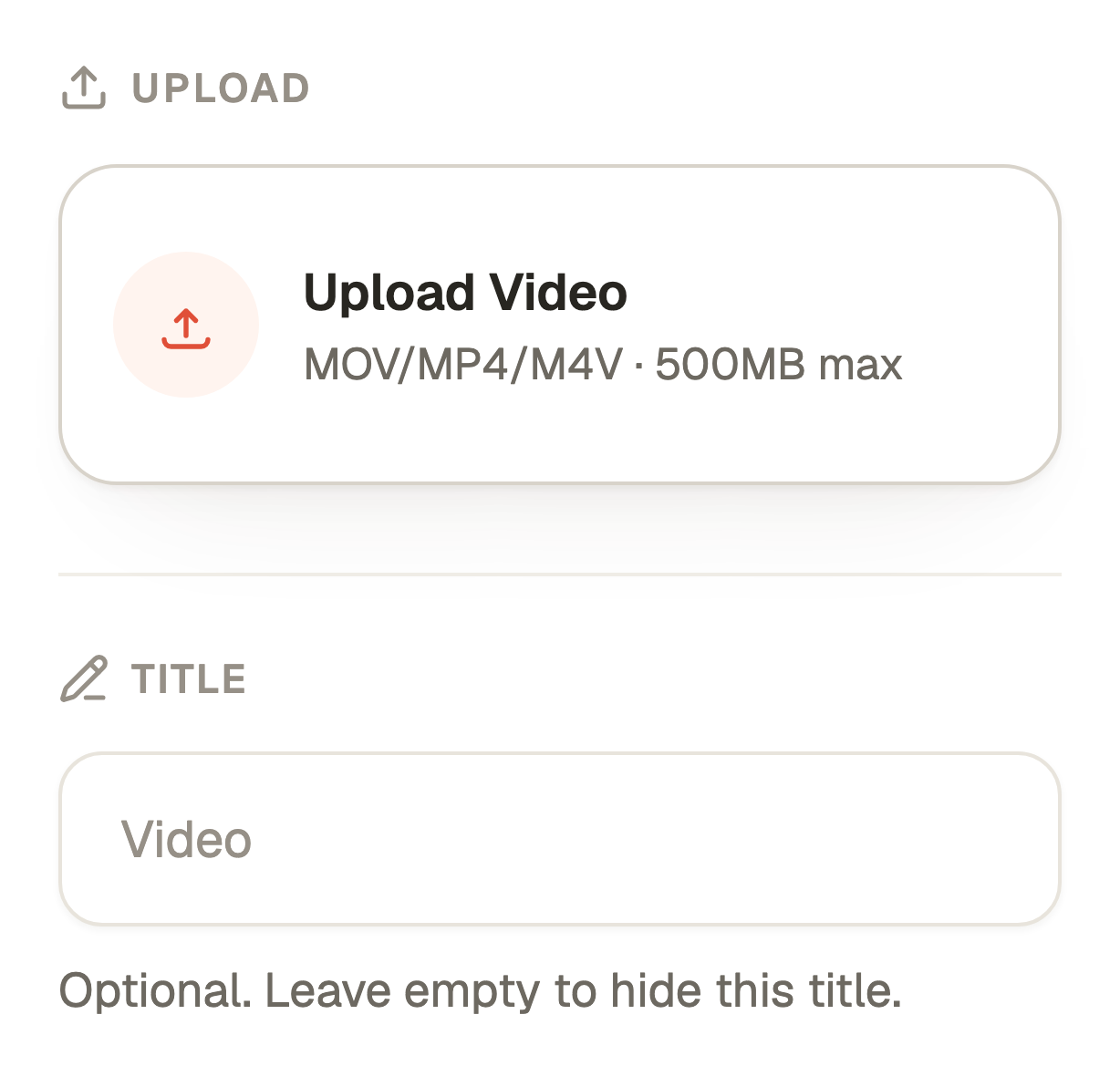
- In Choose Video, use Library to select an existing account video, or Upload Video to choose a file.
- The upload control accepts MOV, MP4 or M4V and shows a 500MB maximum. Follow the displayed validation if a file is rejected.
- Wait for upload and preparation. Select the intended video and review its selected state. Use the optional Title field if the block needs a heading.
- Select Add Video for a new block, or Save Video when editing an existing one. Cancel leaves without applying the pending placement.
Introduce the demonstration
Explain in the surrounding text what the learner should watch for and what to do afterwards. A short demonstration of one task is easier to use than an unexplained long recording.
Include written instructions or a useful alternative explanation where needed. Keep confidential screens, notifications and personal information out of the original recording.
Check playback before publishing
After uploading, wait until the video is ready to play. Test it in Preview before publishing the course.
- Select Preview in the course editor and find the saved video.
- Play it, check its sound and confirm that the important detail is readable. Test at a phone width as well as on desktop.
- If it is still preparing, wait for its ready state. If the app reports failure, use the recovery action it offers or choose another valid file.
- Return to editing to replace the selected video if necessary. Confirm the change and republish the course when ready.
Questions & answers
- Why does a video still show a preparation state?
- Uploaded video can need processing after transfer. Wait for the app’s ready state, then test playback. For a reported failure, use the offered recovery path or contact support with the filename and error.
- Will changing the cover replace the lesson video?
- No. A course or lesson cover and a Video block are separate placements. Edit the placement you intend to change and check Preview.
- Can I use a YouTube link here?
- Use the separate YouTube module in a lesson for a supported YouTube link. The Video picker is for uploaded or stored account videos.