Embed a YouTube video
Paste a supported YouTube video link, save the block and check that learners can play the external source.
On This Page
Add a YouTube block in a lesson
YouTube is a lesson module. Open Courses, choose your course and use Lessons in the bottom bar to open the lesson. Owners and Creators can edit.
- Place the cursor in the lesson content, select Add Block and choose YouTube.
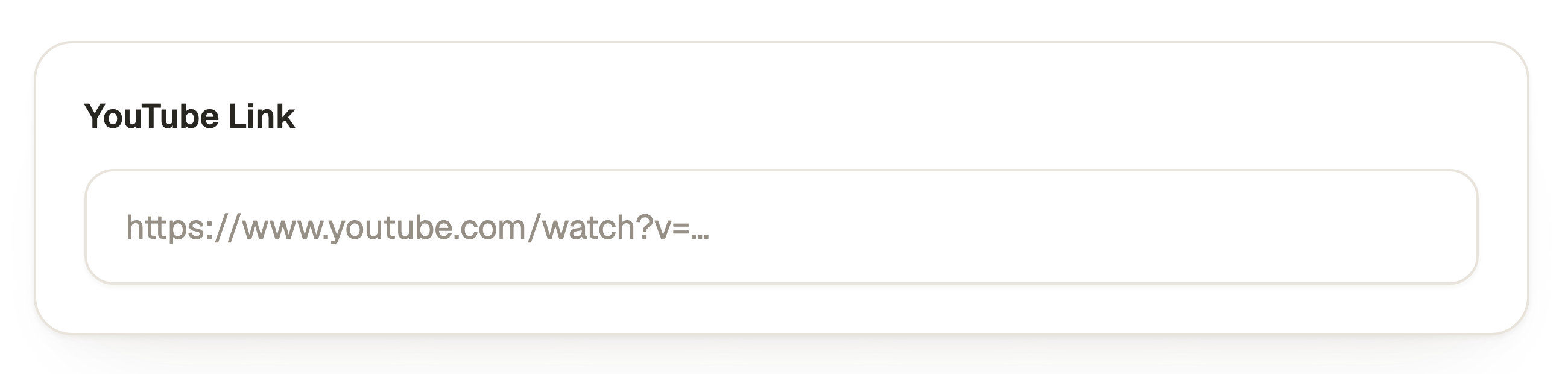
- In Add YouTube Video, paste the video address into YouTube Link.
- Use a video link, such as a youtube.com/watch link or a youtu.be short link. Supported embed, Shorts and live video links are also recognised. A channel or playlist address is not a specific video.
- Review the preview shown beneath the field. Use the optional Title in Toolbar for a custom heading, opening Toolbar on a narrow screen if needed.
- Select Save YouTube Video in the bottom bar. Cancel leaves without applying the pending block edit.
Check that the original video can be embedded
The block plays the external YouTube source. It does not upload a copy into your media library. The video must stay available and allow embedding.
Private, removed, region-limited or embedding-restricted videos may fail for learners even if you can watch them while signed in to the owner’s YouTube account. Check from the intended learner context.
Test the saved lesson and explain its purpose
- Write a short introduction in the lesson explaining what to watch for and what to do next.
- Select Preview in the course editor and play the saved embed.
- Check playback on a phone and confirm that the source is available to the intended audience. Include a useful written explanation where possible.
- Return to Edit if the source needs replacing, save the block and republish the course when ready.
Questions & answers
- Why is Save YouTube Video disabled?
- The link must identify a supported YouTube video. Check for an incomplete link, channel or playlist address. The field reports Enter a valid YouTube video link when it cannot recognise the entered value.
- Why is the embed missing from Add Block?
- Open a lesson first. YouTube is not offered on the course introduction or Complete content. Uploaded Video is available in those areas.
- What if the source video stops playing later?
- Check the original video’s availability and embedding restrictions. Replace it with an available permitted source, save the block and republish the course. YouTube’s owner can change or remove the source after you publish your course.