Find learners and understand access
Use Smart Lists, course filters and reusable lists without confusing permission with course participation.
On This Page
Find the people connected to your content
Smart Lists group learners by their recorded activity. Reusable lists contain the email addresses you add yourself, including people who have not yet joined or started a course. An address alone is not evidence of activity.
- Select Learners in account navigation.
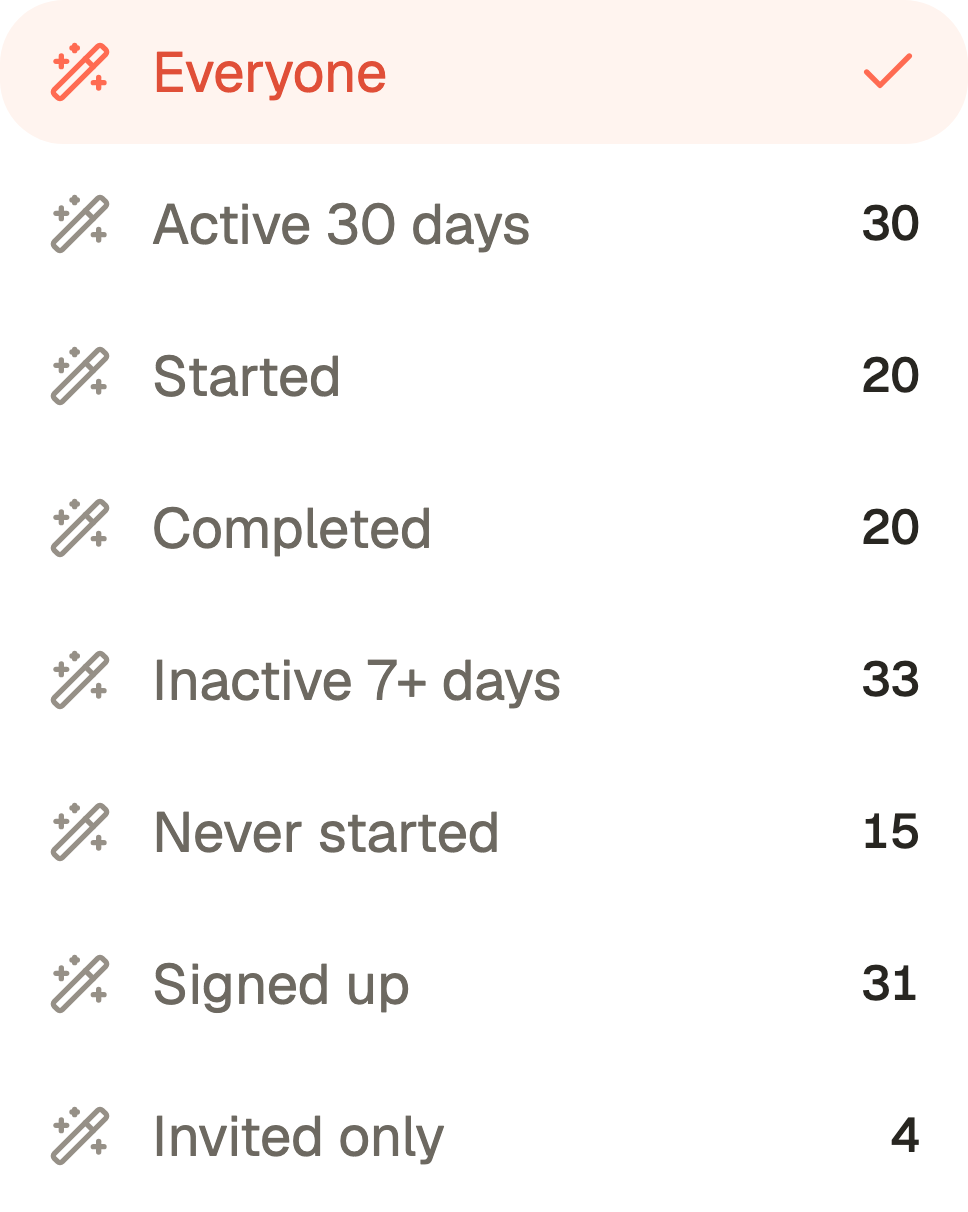
- Open the list selector. Under Smart Lists, choose Everyone, Active 30 days, Started, Completed, Inactive 7+ days, Never started, Signed up or Invited only.
- For a Smart List, use All Courses to keep the account-wide view or choose a particular course. This changes the context of the people and progress shown.
- Read Person, Status, Completed or Progress, and Last Active together. Use an available person’s analytics link to open their detailed report.
Create a reusable list for Selected People
Owners and Creators on an eligible paid plan can manage reusable lists. Viewers can read lists but cannot create or change them. Free can retain readable lists while list management and assignment are unavailable.
Creating a list does not publish content, send the learner link or make the list a team membership. Adding or removing a member of an already assigned reusable list affects that list’s permission immediately.
- Open the list selector on Learners and choose New List.
- Under Add Emails, enter an address and use the add control. Repeat for the people who belong in the list.
- Enter List Title and select Save List.
- To use the list for access, open Space, Course Settings or Flow Settings, choose Selected People, select the list in the recipient controls and save those sharing settings.
Separate permission from joining
Selected People and list membership decide who is permitted to enter. The learner still opens the correct published link, verifies their identity when asked and joins the relevant course.
Invited, Signed up, Started and Completed describe different states. A person can be on a list without having signed up. A signed-in learner can be eligible without having started this particular course. A flow join does not silently join every included course.
Review activity in the right context
Open Analytics and select Learners to inspect a person’s Course Pathway, Question Answers and Learner Activity. Course reporting is under Analytics → Courses. History and response detail depend on the account’s plan.
A reused course keeps the learner’s course progress across flows. Removing permission does not erase that history. It does block further protected access where the learner no longer has a permitted route.
A saved list cannot be deleted while assigned to a space, course or flow. Remove the assignments in those sharing settings first, then review Delete List. Removing a list entry and deleting a whole list are different operations.
Questions & answers
- Why is someone on a list but showing no progress?
- The list can contain an address before the person signs up or joins. Check the course filter, published link, permitted email and whether they have actually started.
- Does adding a learner let them edit courses?
- No. Editing requires account membership as an Owner or Creator. A learner list gives learner permission only where that list is assigned.
- Why can I not create or edit a list?
- Check your active account, role and plan. Viewers are read-only. Reusable list creation, editing and assignment require an eligible paid plan.