Join a course and keep learning
Use a shared learner link, verify your email when asked and continue through lessons or a flow.
On This Page
Open the course and confirm access
Opening a course page does not itself enroll you. The course must be published and your identity must meet the current sharing rules. Read the creator and terms disclosure shown during joining.
A verified member of the course’s account can be offered a choice to continue the course or open the account dashboard. That is account preview authority, not a learner invitation or a new editing role.
- Open the published course link supplied by the creator. Read the introduction and select Start Course when offered.
- If the account dialog asks for your email, enter the address you want to learn with and select Continue. Selected People content requires a permitted address.
- Follow the sign-in method shown. If a code is sent, enter the six-digit code and select Verify & Continue. Resend Code requests another code when available.
- Complete the course-entry action. A verified existing session can be reused, so not every visit requires another code.
Move through lessons and activities
Your progress is saved against your email and the course. Sign in with the same email when you return. A creator’s app Preview does not record ordinary learner progress.
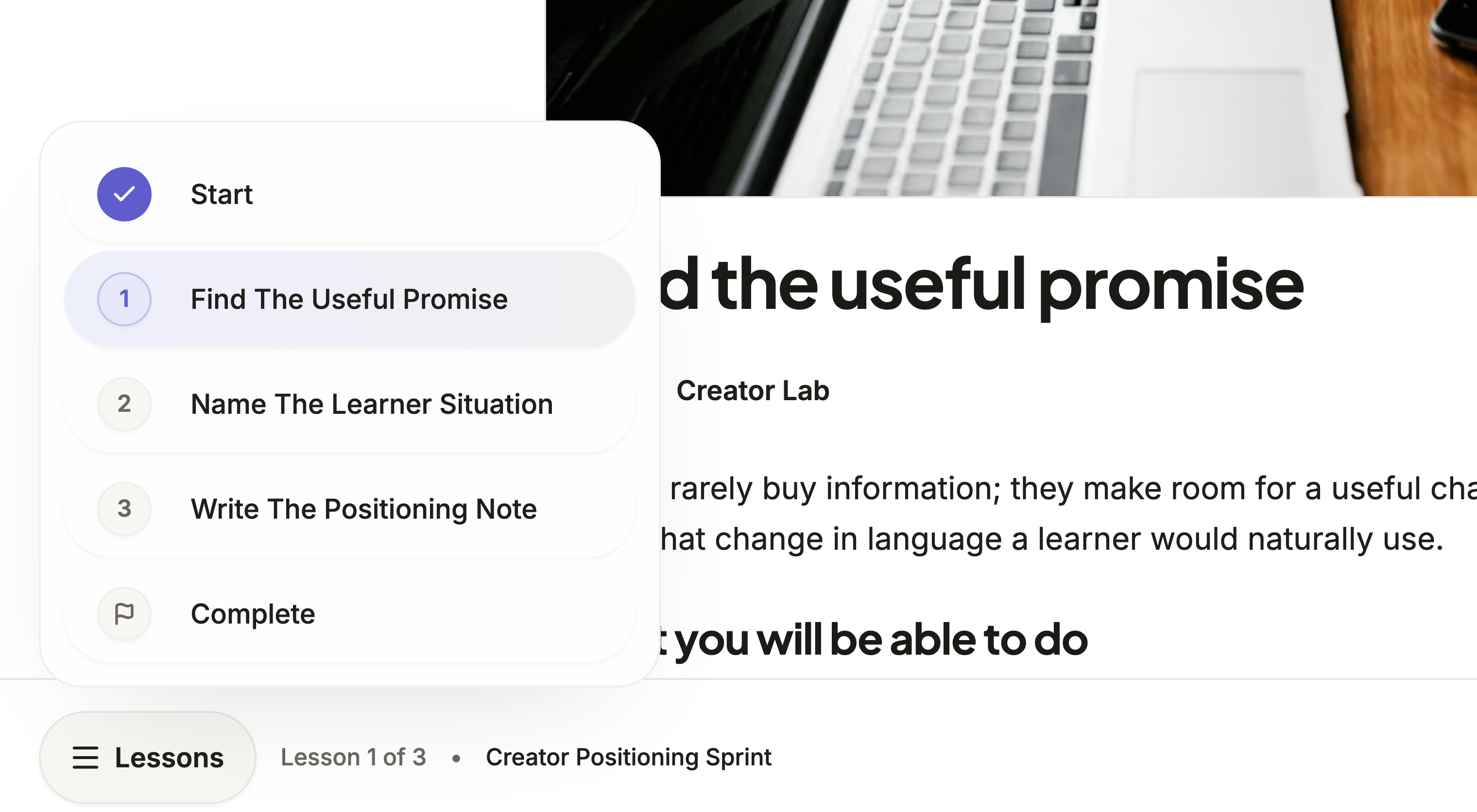
- Use Lessons in the course’s bottom navigation to see the available sections and your position.
- Read the lesson and complete its activities. Questions can require a response or a correct answer before you can move on.
- Use Continue when the lesson permits it. Read the feedback after submitting a question rather than assuming that choosing an option has submitted it.
- Return through My Learning when you are signed in to find courses you have joined. Keep using the intended flow link when access depends on that flow.
Learn through a flow
Open the shared flow and select Start Flow. Follow its identity and joining prompts when shown. Select View Course to inspect an available course introduction, and Start Course to confirm joining that course when required.
In Sequential, later courses stay locked until the earlier requirements are complete. Free Order lets you choose among available courses. Joining the flow does not automatically join each course, although an existing verified session avoids repeating the email step unnecessarily.
Use Back to Flow to return to the path and Next Course when offered after completion. A reused course retains its course progress rather than starting a new record for each flow.
If you cannot continue or return
Check the email you are signed in with and the exact course or flow link. For a missing code, check the entered address and spam folder, then use Resend Code when available. Avoid repeatedly switching emails or requesting codes while a request is still running.
For a locked lesson or course, finish the required activity or preceding course. For an access denial, ask the creator to check the saved audience and publication. Previous progress does not override unpublishing, removed flow membership or a later permission change.
Ask the creator about course content and access decisions. Use Tiny Courses Contact Support for a problem using the app, including the link and the error message you see.
Questions & answers
- Why does Start Course ask me to confirm again inside a flow?
- A flow join and a course join are separate. Each course needs an explicit permitted join. Your verified identity can be reused so this need not mean another email code.
- Why can I not open something I completed before?
- The creator may have unpublished it or changed its audience or flow membership. Your history is retained but does not grant permanent access. Ask the creator to check the current link.
- Do I need to buy a creator plan to learn?
- Joining a shared course is a learner action, separate from creating and managing courses. Follow the joining instructions at the creator’s shared link rather than creating a paid creator account just to access it.