Use AI to draft a course
Get course suggestions from a short brief, edit the outline and review the generated draft before publishing.
On This Page
Start with a clear brief
Owners and Creators can use Get Suggestions from Create Course. AI assistance is optional and subject to the account’s current allowance. Start From Scratch and Start Blank Instead let you write without generating content.
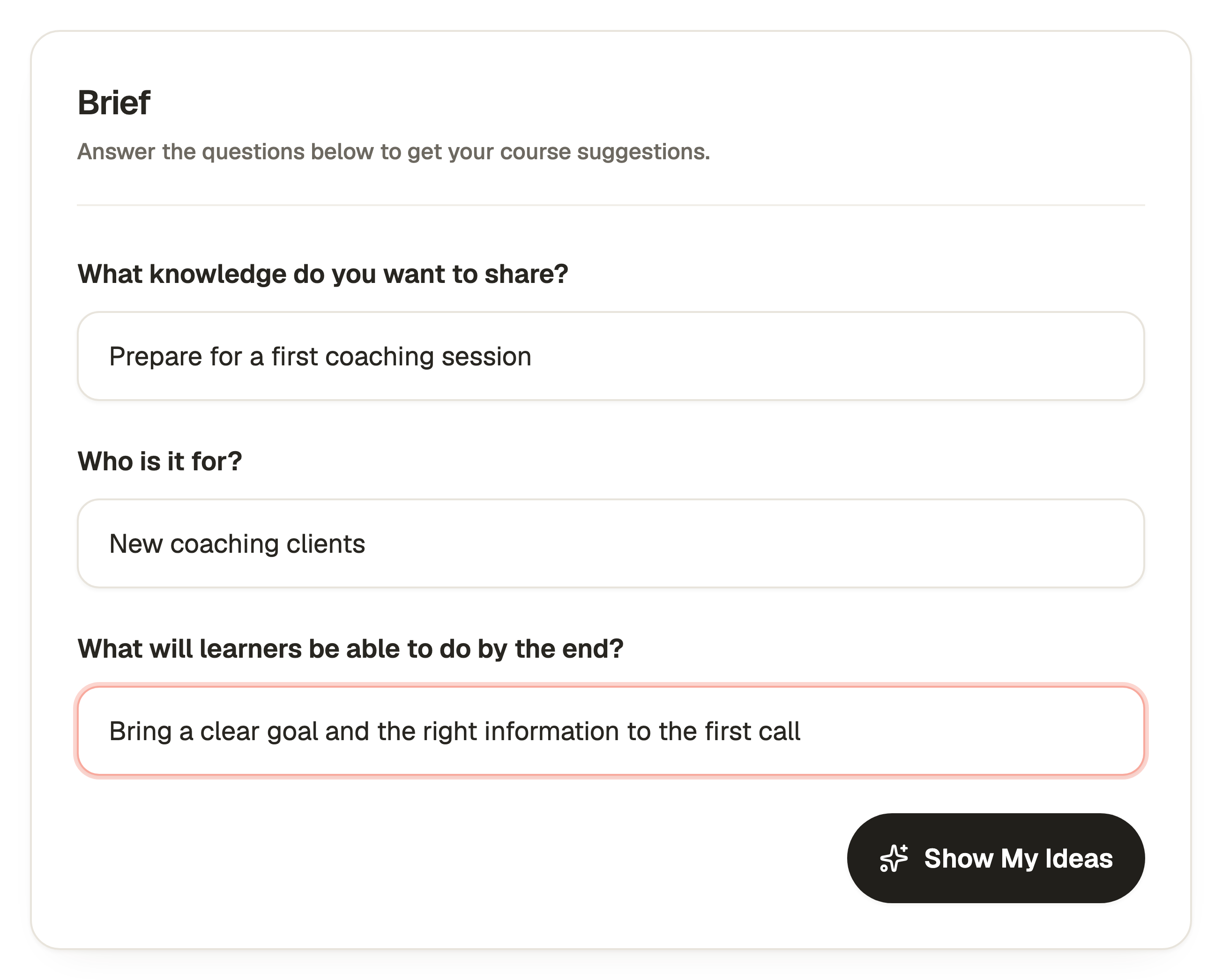
Be specific about the learner’s task. “Preparing a first coaching session for new clients” gives the draft more direction than “coaching”. Do not put private client records or confidential information into the brief.
- Open Courses and select Create Course. On a phone, Create Course is in the bottom action area.
- Select Get Suggestions above the form.
- Answer What knowledge do you want to share?, Who is it for? and What will learners be able to do by the end?
- Select Show My Ideas. Keep the form open while the suggestions are prepared.
Choose an idea and edit its outline
Previous Idea and Next Idea move between the suggestions. Browsing an idea does not create or publish a course. Restart lets you return to the brief and ask for a different direction.
- Read the title, description and lesson titles, then select Use This Idea on the option you want.
- Review Title and Description under Details. Under Lessons, rename, add or remove lesson titles to match what you can teach accurately.
- Check Sharing and the intended audience. Select Create Course when the outline is ready.
- Wait for generation to finish. Open the resulting draft and check the introduction, every lesson and Complete content.
Turn the draft into your own course
Read every generated lesson before using it. Check the facts, replace invented examples and add explanations from your own experience. Check permission before including someone else’s work.
Use Preview to try the saved course. Creating or generating a draft does not publish it. Release the reviewed version through Publish Course, then the publishing screen’s Publish Course action.
New-account setup also offers suggested course ideas. It asks about you and your audience before sign-up. The in-app Create Course screen uses the shorter three-question brief described here.
Resume or recover a draft
If generation was interrupted, use Continue Generation to return to the course. If an attempt fails, use its retry action before starting another course.
If AI cannot produce valid writing, the app can provide editable starter content with a warning. Check the actual lessons before treating the draft as complete. A quota or save error still needs resolving. Contact Support with the course link and the message shown if recovery does not finish.
Questions & answers
- Does choosing Use This Idea publish anything?
- No. It fills an editable outline. Create Course produces a draft, and publication is a later explicit action.
- Can I edit or remove an AI-written lesson?
- Yes. Review the draft in the normal editor and change the title, writing and blocks. Preview the saved version before publishing.
- Can I create a course without AI?
- Yes. Use Start From Scratch or Start Blank Instead in Create Course. You can write all the material yourself.