Set up a client’s own account
Prepare a client invitation, preview their page and understand who owns the new account and subscription.
On This Page
Decide which kind of invitation you need
Set Up Client is for giving a client their own Team account and subscription. It is available to eligible Owners on Pro and Team when the feature is enabled. It does not add a learner to a course or invite a colleague into your existing account.
Your client owns the new account and subscription. Once they complete setup and payment, you join that account as a Creator. They review and accept the subscription themselves.
Prepare and review the invitation
Start from Account in account navigation. Find Set Up Client and select Invite Client. If you see an upgrade prompt or an unavailable message, resolve that before preparing an invitation.
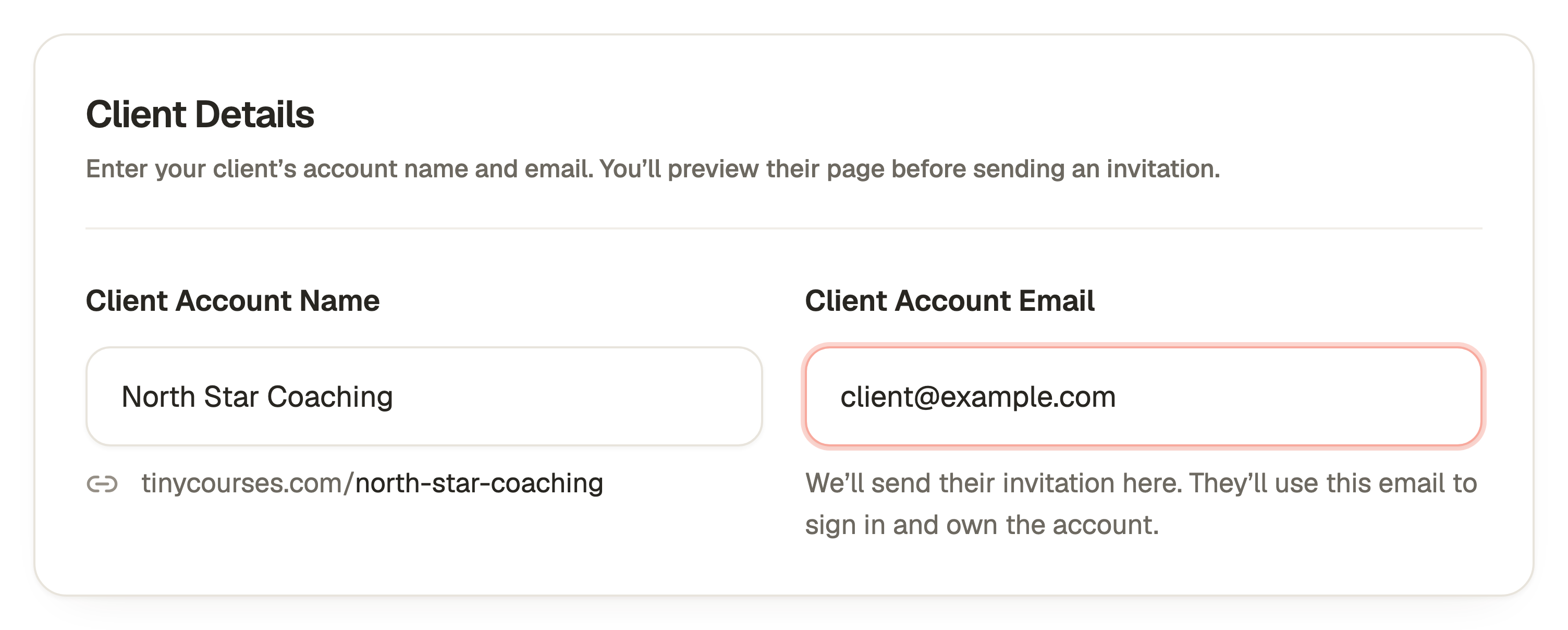
- Under Client Details, enter Client Account Name and Client Account Email. Check the email carefully because it identifies the recipient and intended account owner.
- Review Client Account Team and any additional people you intend to include. Check each person’s role rather than using the client’s login for everyone.
- Use Preview Client Page to review the page the client will see. Check the account identity, invitation details and subscription information shown.
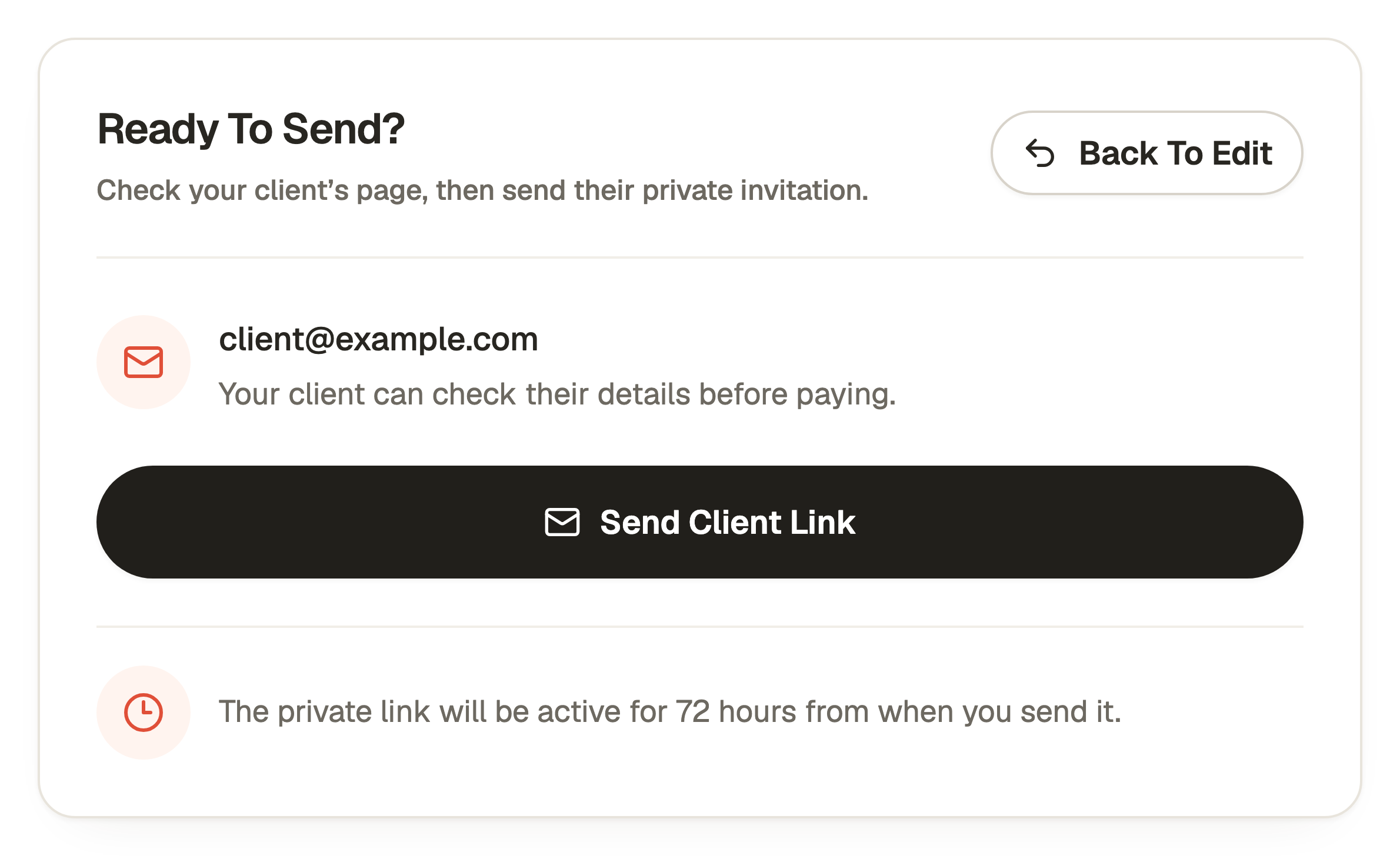
- On the Preview Invitation screen, find Ready To Send? and check the recipient. Select Send Client Link when you are ready to send the email. Review the delivery result. Previewing the page does not send an invitation.
Follow up without creating another account
Return to Set Up Client in Account to review Active Invitations. Use the available resend action when a client needs a fresh invitation. Check the recipient and displayed expiry before sending another message.
If the invitation was saved but email delivery failed, use the offered resend action rather than assuming the whole setup was lost. Removing an unused invitation invalidates its link. It is not the same as deleting a client’s active account.
After the client completes setup, use the account switcher to enter the new account under your own profile. Check the account name before editing courses or sharing content.
Questions & answers
- Is this how I invite learners to a course?
- No. Share the published course or flow link and configure its audience for learner access. Set Up Client creates a separate customer-account invitation.
- Do I become the client’s account owner?
- No. The client owns the account and subscription. The inviting creator joins as a Creator after the client completes the required setup.
- Does Preview Client Page charge or email the client?
- No. Preview lets you review the page. Sending the invitation and the client accepting a subscription are separate explicit actions.