Set up an AI agent (beta)
Connect an AI tool such as Claude Code or Codex so it can draft, preview and publish courses with you.
On This Page
What an AI agent can do
Set Up Agent is in beta. It lets an AI tool you already use work in Tiny Courses on your behalf. You describe the course you want, and the tool can create a draft course, add lessons and questions, choose a cover image, set sharing, make a preview link and publish when you ask it to.
The tool connects with an access key that you create in Account. A key works as you in one account, with exactly the permissions and plan limits you have there. It cannot do anything you cannot do yourself, and it stops working as soon as you revoke it or lose access to the account.
New courses always start as drafts. Open the preview link the tool gives you and check the course before you ask it to publish. Because this feature is in beta, the steps and supported tools may change, and we welcome feedback through Contact Support.
Create an access key
Owners and Creators can create keys from Account. Each key belongs to you and the account you are in, so switch to the right account first.
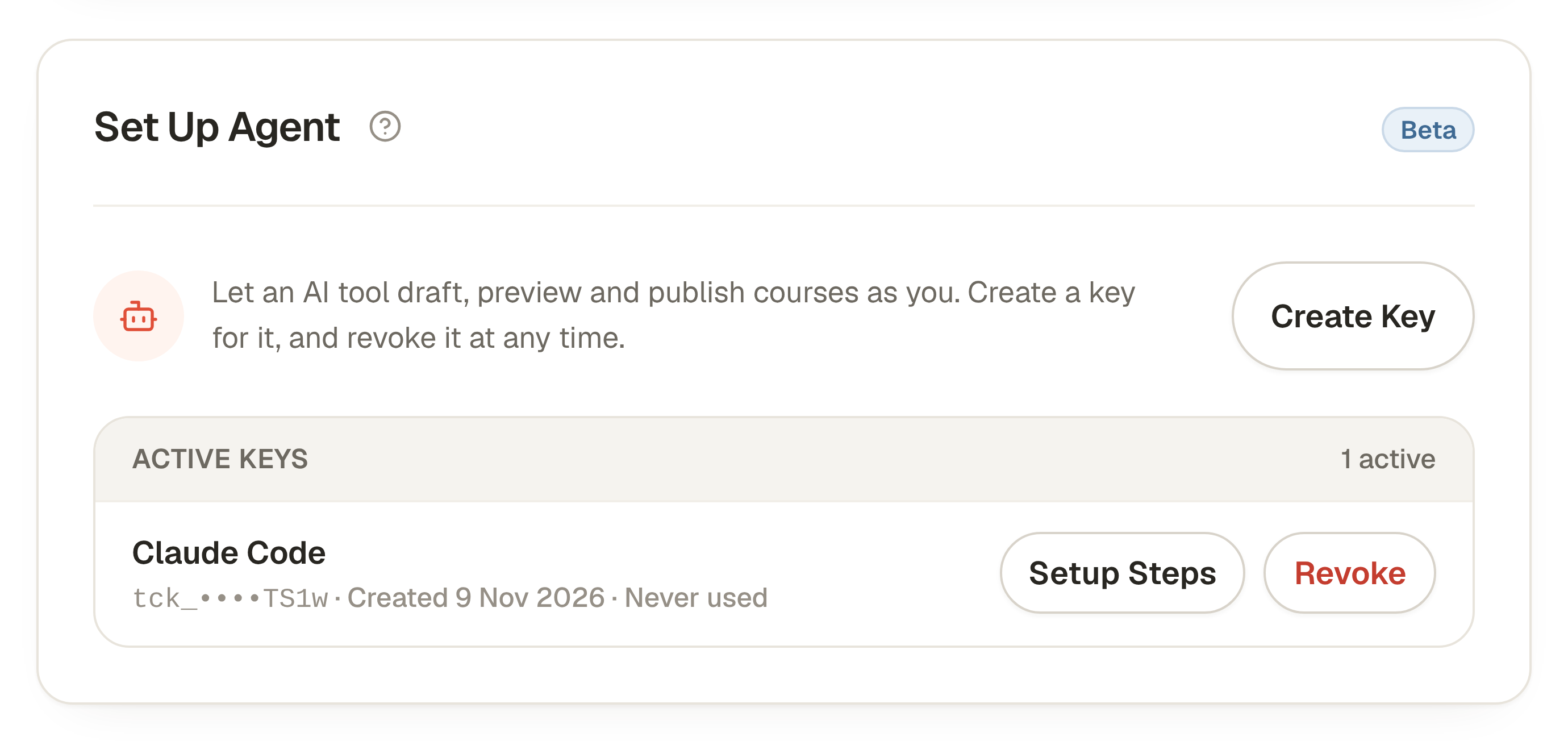
- Open Account, find Set Up Agent and select Create Key.
- In the window that opens, enter a Key Name that tells you where the key is used, such as Claude Code or Work laptop, then select Create Key. The button stays disabled until the name is filled in.
- The same window now shows your new key, once. Copy it, or copy the ready-made setup for your tool, then select I’ve Saved My Key.
- Your key now appears under Active Keys with its last four characters, when it was created and when it was last used.
Connect your AI tool
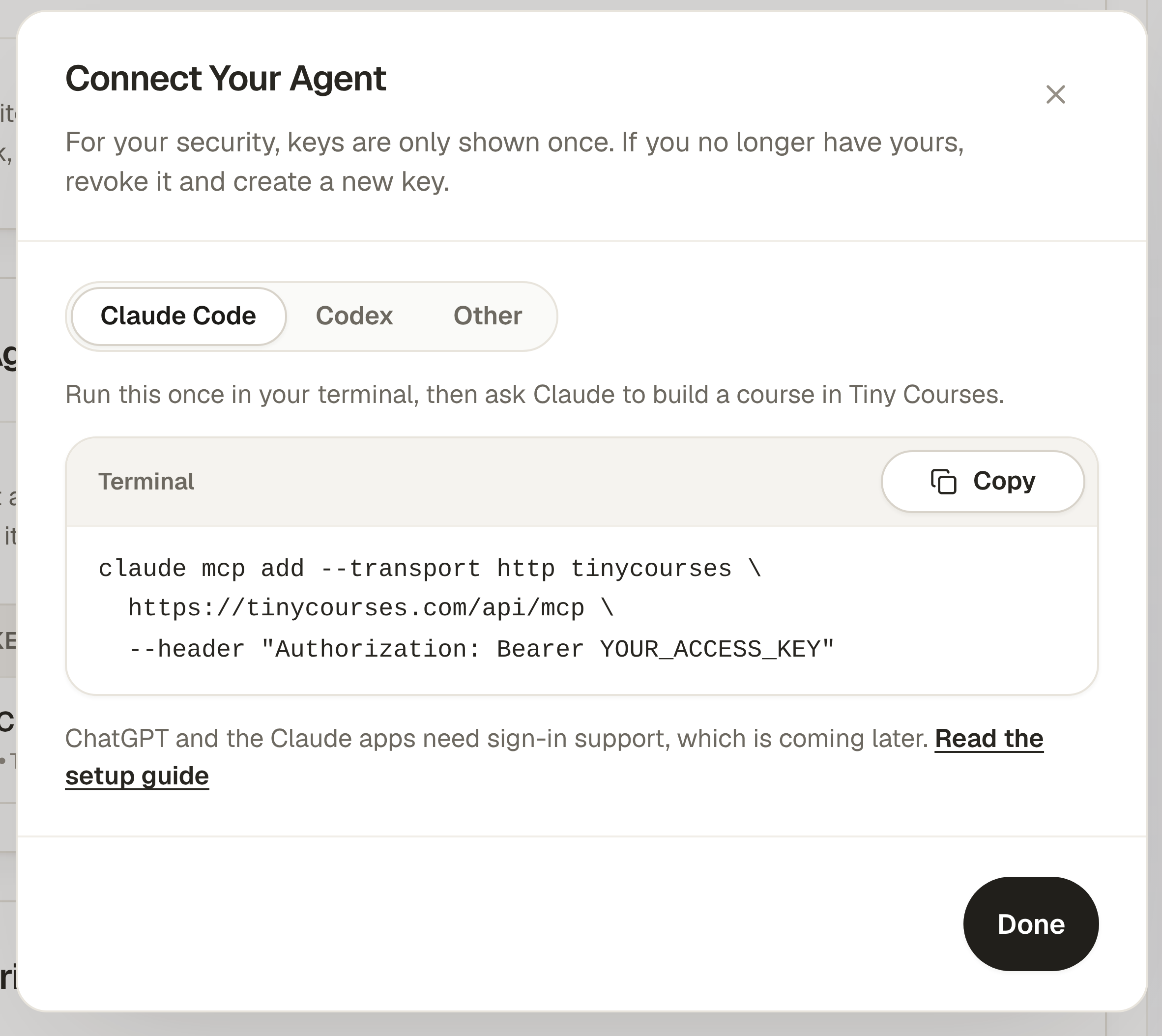
Tiny Courses works with AI tools that can add a remote MCP server and send an Authorization header. MCP is the open standard these tools use to connect to other apps. The setup window has a tab for each option, with a Copy button for every value.
Claude Code: copy the terminal command from the Claude Code tab and run it once. Then start Claude Code and ask it to build a course in Tiny Courses.
Codex: add the lines from the Codex tab to ~/.codex/config.toml, and add the export line to your shell profile so the key stays out of the config file. Restart Codex after saving.
Other tools, such as Cursor or VS Code: add a remote MCP server with the Server address and the Authorization Header shown in the Other tab.
ChatGPT and the Claude desktop and web apps only connect to servers that support signing in through the browser. That is not available yet, so use one of the tools above for now.
Ask it to build a course
Describe the course in your own words, including who it is for, how many lessons you want and whether to include questions. For example: “Create a five-lesson course for new volunteers about safeguarding, with a short quiz at the end of each lesson, then give me the preview link.”
You can keep the conversation going to change lesson text, add questions, pick a different cover or adjust sharing. When you are happy with the preview, ask the tool to publish the course and share the link it returns.
Everything the tool makes appears in your account straight away, so you can also open the course in the editor and continue there.
Keep your key safe
Treat an access key like a password. Anyone with the key can act as you in that account. Keep it in a password manager or your tool’s settings, and never paste it into a chat, document, email or shared screen.
For your security, we only show a key once and store a scrambled version that cannot be turned back into the key. If you lose a key, select Revoke on the key under Active Keys and create a new one. Setup Steps reopens the connection instructions, but never the key itself.
Create a separate key for each tool or computer so you can revoke one without affecting the others. You can have up to 10 active keys for each account.
Questions & answers
- Does this work with ChatGPT?
- Not yet. ChatGPT and the Claude apps need a browser sign-in to connect, which we plan to add. Codex, Claude Code and other tools that accept an Authorization header work today.
- Can the AI tool see my other accounts?
- No. A key works in the one account it was created in. Create a separate key in each account you want the tool to use.
- What happens when I revoke a key?
- Any tool using it loses access immediately. Courses and changes it already made stay in your account.
- Does it cost extra?
- No. The tool works within your current plan and its limits. Your AI tool’s own subscription is separate.