Organise information in a table
Enter cells, add rows and columns, set headers and preview the saved table at a narrow width.
On This Page
Add a table in a lesson
Tables is a lesson module. Open your course, select Lessons in the bottom bar and choose the lesson. Owners and Creators can edit.
- Place the cursor in the lesson content, select Add Block and choose Tables.
- In Add Table, click or tap a cell to edit its text. Replace the starter column headings and example content with your own.
- Select a cell in the row or column you want to change before using the Toolbar controls. Their action applies to the selected part of the table.
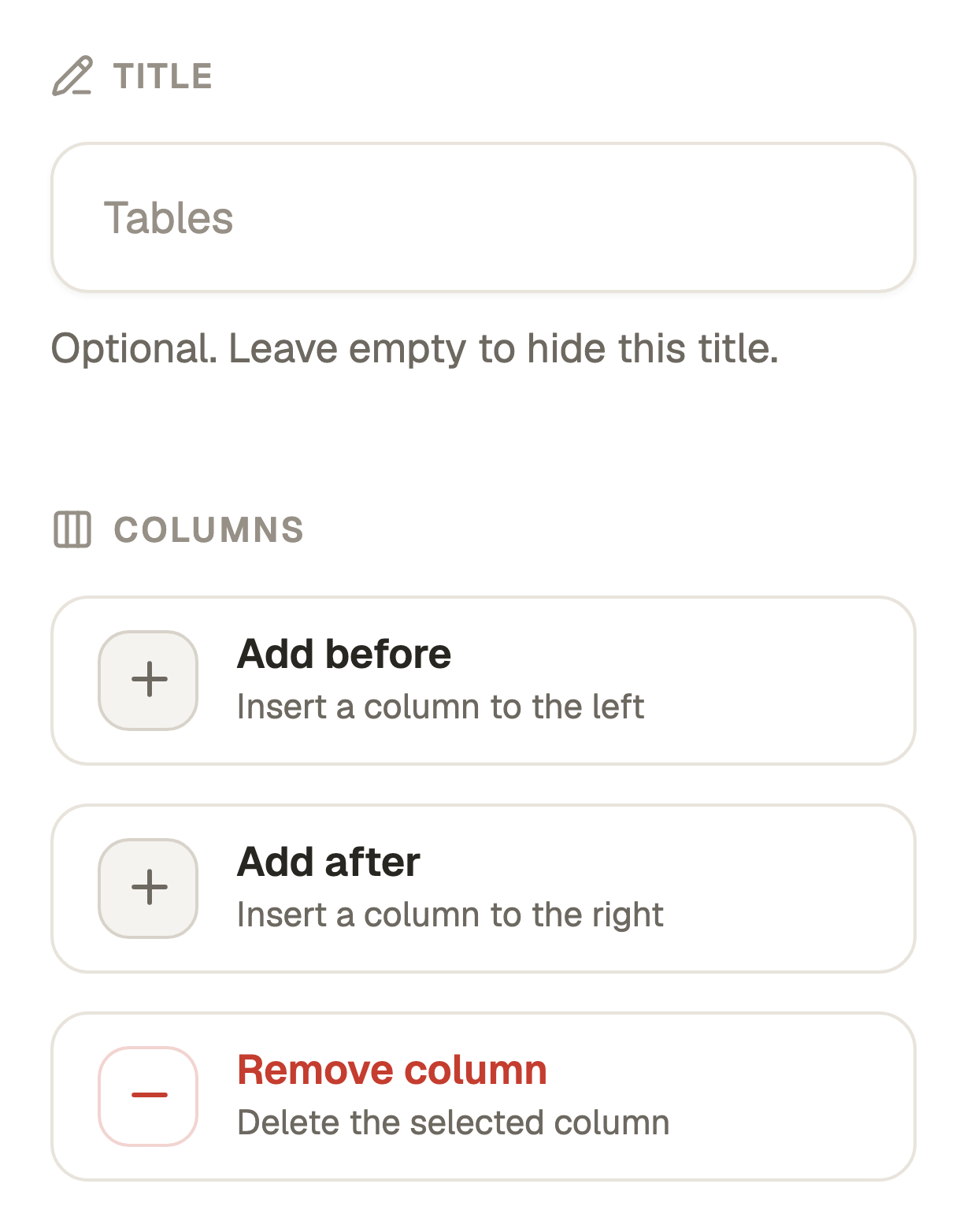
- Use the optional Title field in Toolbar if the block needs a heading.
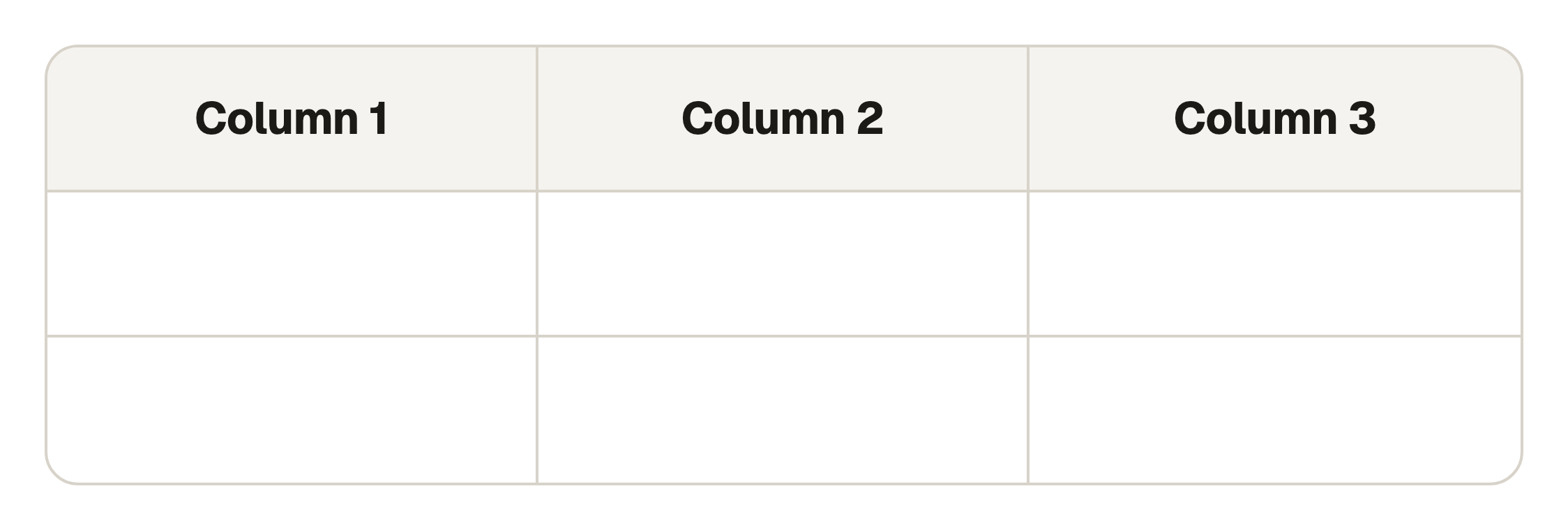
Use the row, column and cell controls
Under Columns, Add before and Add after insert beside the selected column. Remove column deletes that column. Under Rows, Add above and Add below insert beside the selected row, and Remove row deletes it.
Header row and Header column switch the corresponding header treatment. Use clear headings so the reader knows what each entry means.
Select the relevant cells before Merge cells. Use Split cell on a merged cell when you need to divide it again. These controls depend on the current table selection, so click back into the intended cell if an action is unavailable.
Keep the comparison usable
Use a table when the same attributes need comparing across several items. Keep cell text short, and use the same meaning for each column. Use ordinary paragraphs for an explanation that does not need a grid.
Removing a row or column also removes its content from the pending table. Check that you selected the intended part before using a remove control.
Save and test the narrow view
- Select Save Table in the bottom action bar. Cancel leaves without applying pending table edits.
- Select Preview in the course editor and review the saved table.
- Check it at a phone width. Where the table scrolls horizontally, make sure every column can be reached and the headings still make sense.
- Use Edit on the saved table to make corrections, save again and republish the course to release the new version.
Questions & answers
- Why are table controls unavailable?
- Click or tap inside the intended table cell first. Some operations also need a particular selection, such as several cells for Merge cells or a merged cell for Split cell.
- Why is Tables missing from Add Block?
- Tables is available inside a lesson. Use Lessons to move away from the course introduction or Complete content.
- Will saving immediately change a table in a published course?
- No. Save Table changes the draft and Preview. Republish the course when the revised table is ready for learners.