Set up your space
Update the name, description, logo, banner, highlight, links and default audience learners see.
On This Page
Open Space and edit the details
Select Space under Manage in account navigation. Check the account switcher first if you work in several accounts. Owners and Creators can edit the space.
The Preview area shows the space identity as you work. On a narrow screen, use Preview to inspect the result rather than expecting the desktop preview rail.
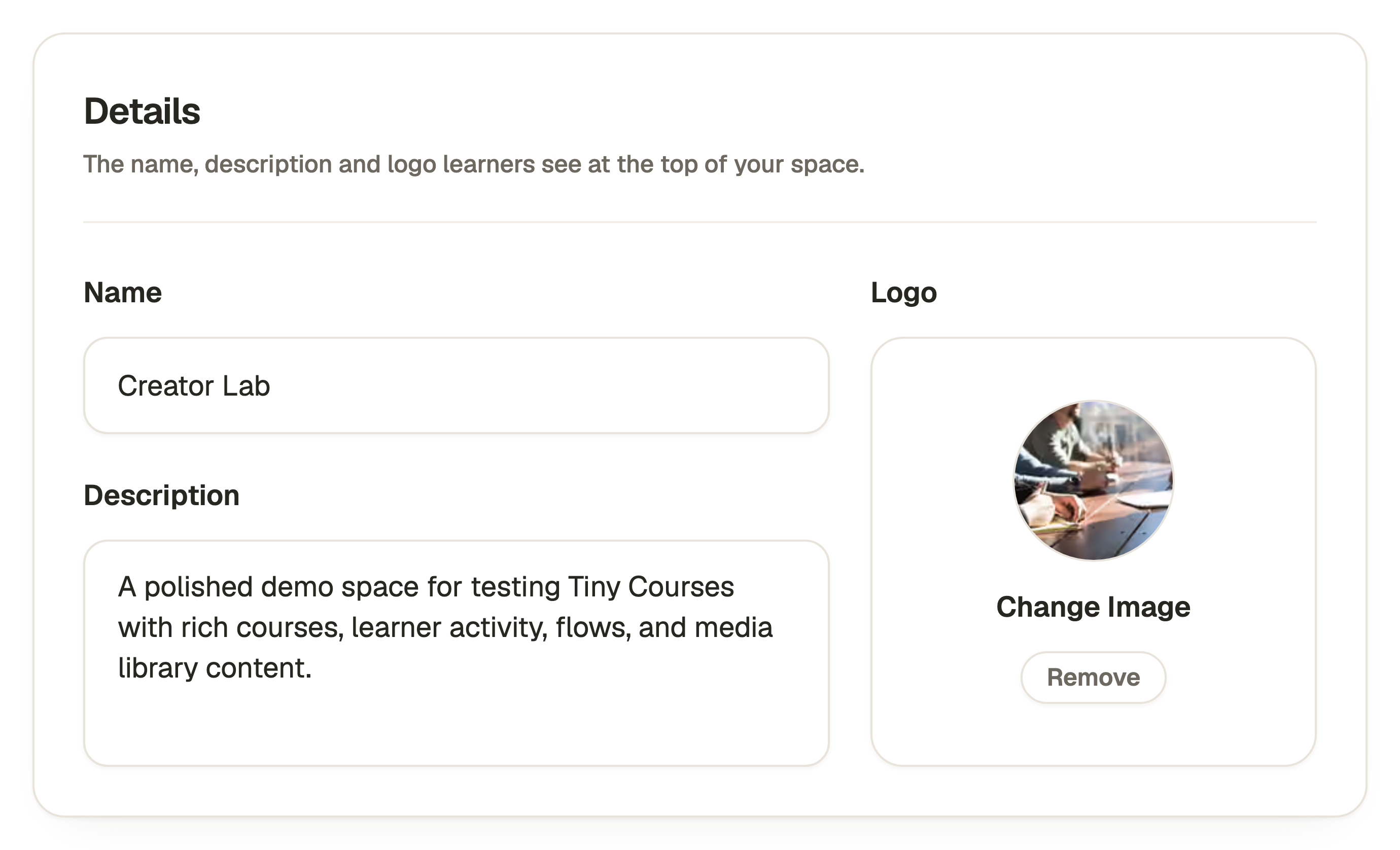
- Under Details, edit Name and Description. These introduce the creator and explain what people can find here.
- Under Logo, use the image control to choose or change the logo. Choose from the library or upload an image, then complete the picker’s confirmation.
- Under Banner, select Choose Image to set the wide image at the top of the space. Remove clears that placement.
- Under Highlight, choose the accent colour for learner-facing buttons and highlights.
Add website and social links
Use links that your intended learners can open. Adding a link to another private resource does not grant permission to that destination.
- Find Website & Social Links and select Add Link for another row.
- Enter the destination in Link. Use the full intended website or social address.
- Enter Button label if you want a specific label for that link. Check that the wording describes the destination.
- Use the row’s remove control for a link you no longer want. Review the remaining links before saving.
Set the default audience
Scroll to Sharing and open This Space sharing. Anyone permits access through its published link. Selected People uses your chosen recipients or lists. Just Me, called Just Us for a team, keeps access within the authorised account.
Courses and flows using Use Space Sharing Settings follow this default. Resources with their own audience keep it. Selected People, Just Me / Just Us and reusable list management require an eligible paid plan.
Save and check the space
Space identity and saved branding changes have no separate Publish action. Courses and flows still require their own publication. If sharing cannot load, use Try Again before saving rather than treating the missing audience as an empty selection.
Space Link shows the established address. Changing Name does not rename it. Unlock link editing is a separate action and warns that a change may break existing space, course and flow links. Leave the established link alone unless you intend that change.
- Select Save Changes at the top right on desktop or in the bottom action area on a phone. Wait for the save result.
- Use Preview to inspect the space in the app. Use View Public Space in account navigation to open the public space.
- Use Copy Public Link if you want to share its saved address.
Questions & answers
- Why is Save Changes disabled?
- There may be no unsaved changes, a save may be in progress, required sharing data may still be loading, or the selected audience may need a different plan. Resolve the on-screen error or plan requirement before retrying.
- Is my space name my personal profile name?
- No. Space is your creator presence. Use the top-right account menu and Profile & Sign-in for your own name, avatar and sign-in preferences.
- Why does a course still show its old title or cover?
- Course authored details and media use their last published version. Edit and republish the relevant course to update that version. Space branding has its own immediate lifecycle.